Advanced troubleshooting via Diagnostic Logs and Message Capture
When the Signatures Tester says it should work but real mail doesn't, two tools take over, the Diagnostic Logs for past-7-days rule evaluation, and Message Capture for shape-of-message diagnostics on a sample of live mail.
The Signatures Tester answers “would Exclaimer apply this signature?” The Diagnostic Logs answer “did Exclaimer apply this signature?” Message Capture answers “what did the email actually look like before and after Exclaimer touched it?” Most Advanced-level support tickets need at least one of those last two.
The escalation chain
flowchart TD
    T[Signatures Tester:<br/>simulate sender + recipient]
    T --> Q1{Tester reports<br/>signature would apply?}
    Q1 -->|No| F1[Fix the rule that failed first]
    Q1 -->|Yes| Q2{Real mail still<br/>missing signature?}
    Q2 -->|Yes| D[Diagnostic Logs:<br/>did Exclaimer process the message?<br/>which rules passed at send time?]
    D --> Q3{Diagnostic Log shows<br/>matching log entry?}
    Q3 -->|No| U[Upstream issue:<br/>transport rule scope,<br/>connector status,<br/>tenant hydration]
    Q3 -->|Yes| MC[Message Capture:<br/>what did the message look like<br/>before/after Exclaimer]
    MC --> R[Open ticket with Exclaimer Support<br/>attach Capture diagnostics]
Walk the chain in order. Each tool answers a different question; jumping ahead skips diagnostics that would tell you what was wrong.
Diagnostic Logs: the past-7-days rule audit
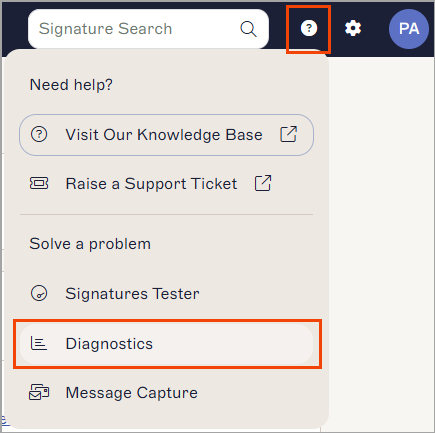
Open via the question-mark icon, Diagnostics. Search by sender email, deployment type (Client-Side, Server-Side, Exchange On-Premises), and date range up to the last 7 days (Exclaimer retains 7 days of log information; older logs are gone).
Each result row shows timestamp, status, whether a signature was matched, and the sender. Drill into Log Details and you get two tabs:
- Signatures: the same rule breakdown the Tester shows, but recorded against the actual send. Each enabled signature, each rule, with a tick or cross. This is how you confirm the rules-as-evaluated-at-send-time matched what the Tester predicted.
- Details: log type (the configured deployment of the signature), log message (“signature applied” or the failure reason), and signatures matched (true/false).
Message Capture: the shape-of-message tool
When the Diagnostic Logs say a signature applied but the recipient still doesn’t see one, or when DKIM, formatting, or a downstream filter is suspected, Message Capture is the next tool. It captures up to 10 messages between a chosen sender and a chosen recipient (or all recipients), records before-and-after diagnostic data, and emails it to a chosen address inside the customer’s tenant.
Open Message Capture
Question-mark icon, Message Capture. The Owner has read-and-write; Admins are read-only on this screen.
Configure capture conditions
Enable message capture. Set ‘Messages to capture’ (max 10). Enter the Sender (max two addresses). Choose ‘Capture messages to all recipients’ or ‘Capture message to a specific recipient’ (max two). Optionally tick ‘Capture replies from this recipient to the specified sender’ for round-trip capture (server-side only). Set ‘Deliver diagnostic data to’ as an address inside the customer’s Microsoft 365 or Google Workspace tenant.
Wait for the user to send the next emails
Capture is conditioned on real mail flow; the customer needs to send the matching messages naturally. The customer’s own mail flow continues uninterrupted; captured messages still reach the recipient.
Forward the diagnostic email to Exclaimer Support
Capture results land in the diagnostic-data inbox. Reply to the existing Exclaimer Support ticket with the captured data attached. Don’t share the captured emails outside the ticket; they contain the customer’s mail content.
A worked ticket: Riverbend Legal
Riverbend’s compliance lead opens a ticket: “Our outbound emails to one specific external counsel are arriving without the signature. Other recipients see it fine.”
Run the Tester
From: a Riverbend solicitor. To: the external counsel’s address. Tester reports the signature would apply. Rules pass. The Recipients rule type is ‘All Recipients’.
Diagnostic Logs
Search by the solicitor’s email, Server-Side, last day. The log entry for the relevant timestamp shows ‘Signatures matched: true’ and the signature applied. So Exclaimer did its job.
Message Capture
Configure Capture for the solicitor and the external counsel, capture all replies from counsel back to the solicitor. Wait for the next round-trip exchange. The captured before-Exclaimer message has the signature placeholder; the after-Exclaimer message has the rendered signature. So the issue is not at Exclaimer’s layer.
Investigate downstream
Counsel’s mail server is stripping HTML and presenting plain-text only. Confirm with counsel’s IT, then offer the customer two options: ask counsel’s IT to allow HTML from Riverbend’s domain, or accept plain-text-only on that thread. Either way, the resolution sits outside Exclaimer.
The escalation chain confirmed the problem is downstream. Without it, the temptation is to keep editing Exclaimer rules; the Diagnostic Logs and Capture diagnostics are the discipline that keeps your fix where the bug is.
When to escalate to Exclaimer Support
Open a Technical Support ticket (question-mark, Raise a support ticket) when:
- Diagnostic Logs show a signature should have applied but Capture proves Exclaimer modified the message incorrectly.
- The connector wizard fails with an error not covered by the documented hydration case.
- Mail flow consistently fails for messages that pass the Tester and the Diagnostic Logs.
When you open the ticket, attach the Capture diagnostic data (forwarded from the diagnostic-recipient inbox), the Diagnostic Log row IDs, and the Subscription ID (Account menu, Subscription details). Support can find you faster with the ID; lean on it.
What this is NOT
- Not a substitute for Microsoft’s own message trace. For end-to-end mail flow questions that span Exchange Online, Microsoft 365 message trace is still the right tool. Exclaimer’s Capture only sees messages that reach Exclaimer; messages blocked upstream don’t appear.
- Not retroactive. Capture only records messages sent after it’s enabled and matching the conditions. There is no retroactive capture of yesterday’s email.