Portal walkthrough — inside an organisation
The most expensive mistake on this platform is the right action on the wrong customer. The organisation selector at the top of the page is the single source of truth for which tenant you're acting on, and a five-step pre-isolation sequence keeps the wrong-tenant error out.
The most expensive mistake a new tech makes on this platform is not doing the wrong thing. It is doing the right thing on the wrong customer. Isolate a host, run a remediation, revoke a session: correct action, wrong organisation, and you’ve taken a working endpoint offline for a customer who was fine. The portal’s context-switching design is built to make this hard but not impossible. The job of this lesson is to make sure you fall on the “hard” side every time.
Getting into an organisation
Two paths get you into an organisation’s scoped view:
- From the global Incidents list, click the organisation name on an incident. The portal carries you into that customer with the incident already in view.
- From the global Organizations list, click the org name. The portal opens the customer’s homepage.
Path one is the daily reflex; you’re following an incident. Path two is what you reach for when a client phones in and you need to look something up before any incident exists.
What the scoped view actually looks like
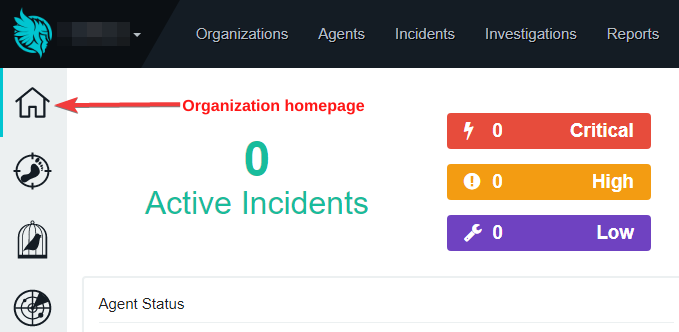
Read it every time, even when you “know” what it says. The dropdown is also how you switch into another organisation without going back to the main Command Center.
Useful when you’re done with one customer and need the cross-tenant dashboard again. Be deliberate; clicking the logo mid-sequence loses your filters.
Top icon (house) returns to this org’s homepage. The icons below cover Agents, Canaries, and Investigations among others. Names and icons shift between releases; the Huntress Portal Side Menu KB article is the source of truth for which icon does what right now.
The headline number on the org homepage. Zero means nothing open; non-zero means click through to the Incidents list (top nav) to work them.
The same shape as the Command Center’s Active issues strip, narrowed to one customer. A non-zero Critical here means something is on for this tenant.
The two source-of-truth signals
Two parts of the screen tell you which customer you’re acting on. The organisation selector at the very top-left, next to the logo, is the canonical signal — that’s the dropdown the portal uses internally to scope every surface on the page. The homepage title (Active Incidents counter and tiles) is a corroborating signal; if the counter says 3 Critical and you expected 0, you’re either on the wrong tenant or yesterday’s news is older than you thought.
The mistake to make hard: glance only at the org name in the URL, or only at the tile counts, and decide the page is “obviously” the right tenant. Both signals together, every destructive action.
What lives in the side menu vs. the top nav
The top nav (Organizations, Agents, Incidents, Investigations, Reports) is the cross-org view of those surfaces. Click Incidents in the top nav while you’re inside Contoso and you see all incidents across the whole account, not Contoso’s. To see only Contoso’s incidents, stay inside the org-scoped view and use the side menu’s per-surface icons.
The side menu is the org-scoped navigation. The home icon goes to the org’s homepage; the icons below go to that org’s Agents, Canaries (ransomware tripwires), Investigations, and other surfaces. The exact set shifts as Huntress adds products; the KB article linked from hotspot 3 is the live index. Don’t memorise — learn the shape of house at the top, surface icons below, and read the tooltip on any icon you don’t recognise.
The pre-isolation sequence
When a senior says isolate WS-FINANCE-04 on Contoso, the cheap-but-load-bearing sequence below is what keeps the wrong tenant out of the click. Each step costs seconds; the alternative costs hours.
Switch into the named organisation
Use the global Incidents list (if you’re following the incident) or the Organizations list (if not). The org selector at the top-left should flip to the name the senior named.
Read the org selector aloud in your head
Contoso, not Contoso Holdings or any other lookalike. The selector is the source of truth; if it doesn’t match what you expect, stop.
Navigate to Agents (side-menu icon)
Inside the customer’s scoped Agents view, locate the specific host by name. The scoped view filters to just this customer’s endpoints, so a match here is also a match for this customer.
Confirm the hostname matches exactly
WS-FINANCE-04, not WS-FINANCE-14 or WS-FINANCE-04-OLD. Wrong-host is the sibling of wrong-tenant; both checks happen before the click.
Click Isolate
Only now do you take the destructive action. If the phone rings between step four and step five, hand the other caller a five-minute callback and finish this cleanly. Single-task the destructive action.
A worked ambiguity: which Acme?
A senior says over chat: isolate the laptop that just popped on Acme, we’re seeing canary indicators. You have two Acmes in your portfolio: Acme Manufacturing and Acme Holdings. The senior didn’t disambiguate.
The wrong moves: picking the Acme you talk to more often (probably is not acceptable on an isolation), or isolating in both Acmes to be safe (you’ve now potentially taken a working endpoint offline at the wrong customer). The right move is open the most recent Critical incident, identify which Acme it tripped on, confirm the host name with the senior before isolating. The two-second pause costs nothing and prevents the worst class of error. Seniors would rather you confirm than guess.
Common mistakes to drop now
- Acting before reading the org selector. You took a phone call, switched orgs mid-conversation, did something on the wrong tenant because peripheral vision didn’t catch the swap.
- Two organisations in adjacent tabs. Same domain, same UI, the brain treats them as one. One customer at a time, or different browser profiles.
- Clicking the top-nav Incidents while scoped to an org and expecting to see only that org’s incidents. The top nav is cross-account. Stay in the side-menu surfaces if you want the scope to hold.
- Trusting a search result without confirming the org column. Two customers can have the same hostname (
SRV01,EXCHANGE,WS-RECEPTION). Search isn’t broken; cross-org collisions are real.