Tour of the ThreatLocker Portal
The four console areas a helpdesk technician opens every shift, plus how to switch organisation context safely.
The ThreatLocker Portal is where every helpdesk action happens. The same sidebar appears whether you’re in a customer’s organisation or in your MSP-level parent org. Tenant context determines what you’re acting on; the sidebar layout doesn’t change.
The sidebar, where shifts start
The sidebar is the same in every customer’s tenant. Tenant context decides what the surfaces show; the layout doesn’t move.
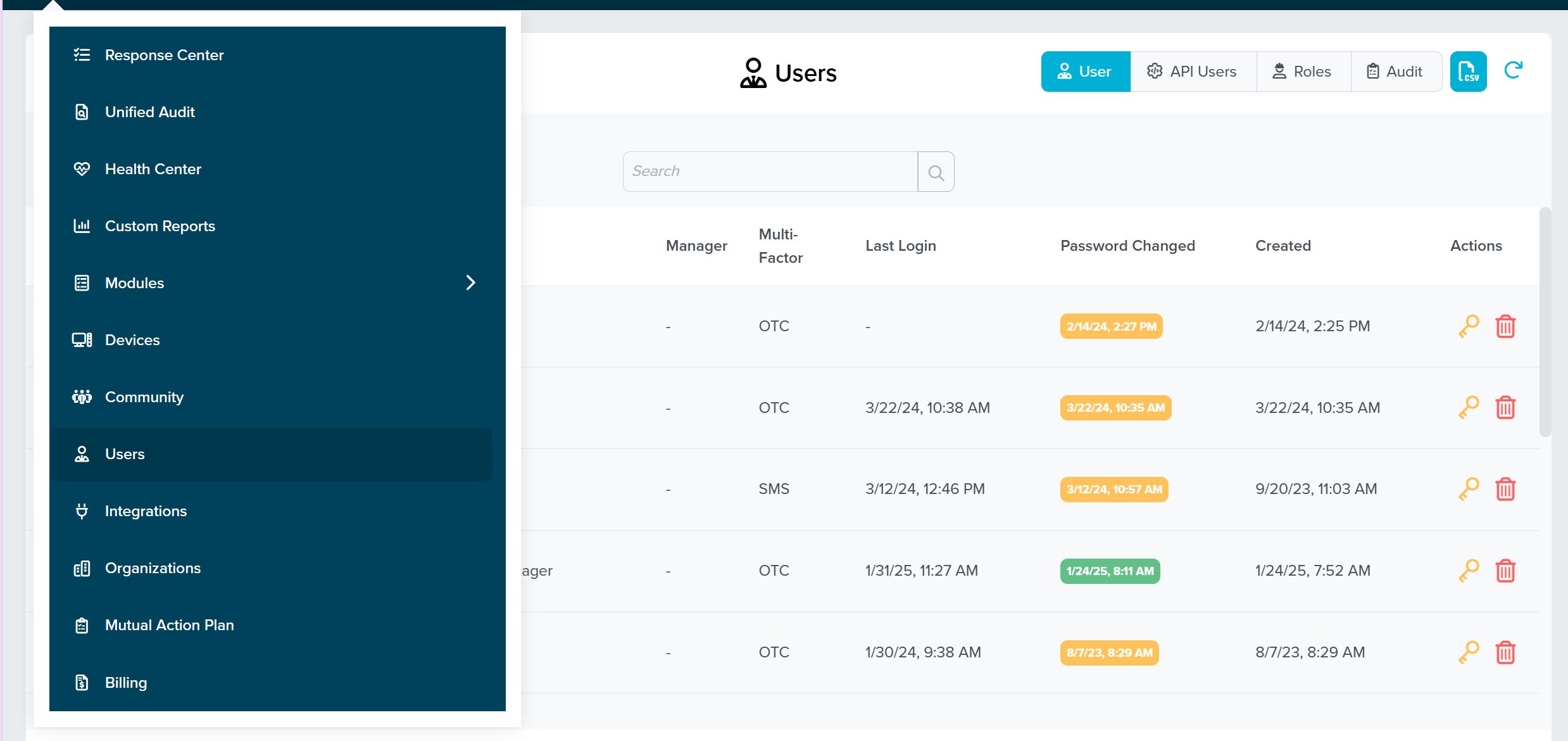
Pending approval requests for the org you’re scoped to. The badge counts Pending only (status integer 1); approved, rejected, and self-approved requests live elsewhere. Most ThreatLocker tickets begin and end on this page.
Time-stamped log of every Permit, Deny, and Ringfenced action across thirteen action types: execute, install, network, registry, read, write, move, delete, baseline, powershell, elevate, configuration, dns. The page you open when something got blocked but no request landed.
Agent and endpoint posture across the org. Open before a customer’s change window to confirm everyone’s checked in recently and on the agent version you expect.
Application Control, Storage Control, Network Control, Elevation, Detect, Configuration Manager. Each one lights up only if the customer’s plan SKU includes it. Less helpdesk traffic, more policy-design work; mostly the territory of the Intermediate and Advanced courses.
The endpoint inventory: maintenance modes, applied policies, recent activity, agent version. Open when a single endpoint is misbehaving and you need to see what’s actually running on it.
The customer hierarchy. MSP staff log in at the top; child orgs sit beneath. Switching changes what every other page in the sidebar scopes to. Confirm the org in the page header before approving anything.
The Response Center is the most-opened page
The Response Center page is the first thing most ThreatLocker techs open after lunch. Pending requests are sorted by Last Updated. Each row shows:
- Hostname / Username of the requesting machine
- Action Type (Execute, Elevate, Storage, Network, etc.)
- Path the user attempted
- Date of the request
- Comments the user typed in the tray prompt
Clicking a row opens a side panel with the file’s hash, certificate, originating process, requestor email, the customer’s organisation name, and the matching-applications search ThreatLocker ran when the request came in. The Approve / Deny buttons live there, alongside Ringfencing options for the resulting policy.
Switching organisations
The Organizations sidebar entry exposes the tenant tree. MSP staff log in at the top-level organisation; child organisations sit beneath it, one per customer. Switching is a click; the sidebar context updates and every page in the portal now scopes to the selected org.
The Response Center has a “Show Child Organizations” toggle that aggregates pending requests across every customer beneath you. That’s how you triage at scale; you see one inbox spanning every tenant where you have approval rights, without manually switching org by org.