Triaging an approval request, four questions
A repeatable triage flow for the most common ThreatLocker ticket. Identify the file, decide if it should run, pick the policy scope, and document the decision.
Most ThreatLocker tickets are the same shape: a user tried to run something, got blocked, clicked the tray prompt, typed a reason, and now there’s a pending request in the Response Center. The goal of triage is to answer four questions in order, then pick the right action.
The user side of the conversation is a tray dialog they see the moment something is blocked:
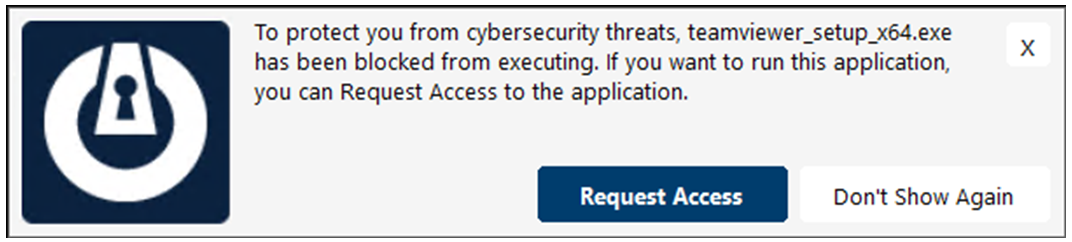
The tray names the binary. That string is the first thing the helpdesk looks at when the request lands; it travels into the Response Center entry as the path.
Clicking this opens a small comment box, sends the request to the portal, and the user waits. The status integer 1 (Pending) is what the helpdesk filters on.
The block stays in place; the user just doesn’t see the prompt again on this machine for that binary. If a user clicks this and then complains to the helpdesk that “nothing happens when I try to install it”, check the Unified Audit rather than the Response Center.
The four-question triage
flowchart TD
    Q1{What file<br/>was requested?} --> Q2
    Q2{Should this<br/>actually run<br/>on this device?} --> Q3
    Q3{What scope<br/>does the policy<br/>need?} --> Q4
    Q4{What is the<br/>right action?}
    Q4 --> A1[Approve with Ringfence,<br/>scope-correct, expiration set]
    Q4 --> A2[Deny,<br/>note the reason]
    Q4 --> A3[Defer to Cyber Hero<br/>or escalate to senior tech]
Walk these in order. Each question gates the next.
1. What file was requested?
Open the request. The detail panel shows the full path, hash, certificate (if signed), originating process (what spawned it), and organisation / hostname / requestor email. ThreatLocker also runs a matching-applications search and shows you any built-in or existing custom application definitions that fit the file.
The matching-applications panel is what makes the call tractable. The Application Control list it draws from looks like this:
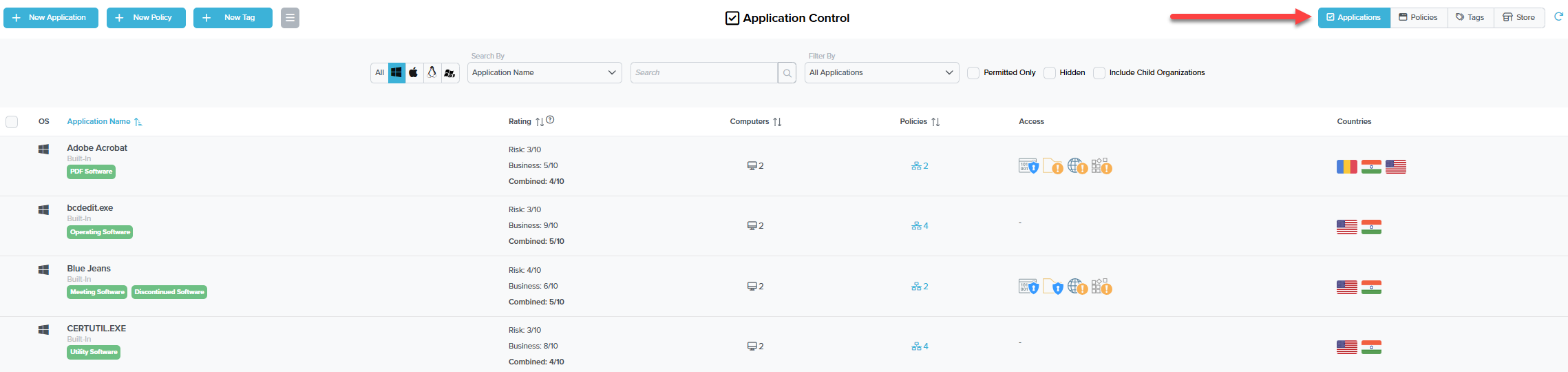
Built-In definitions are vendor-curated and update automatically. They cannot be edited via the API; custom application definitions can. Approving a built-in via a request effectively permits the whole built-in (every file rule it ships with), not just the requested file.
Risk rates the security exposure (a low-trust utility scores higher), Business rates how commonly it’s needed in a business setting, Combined averages the two. Useful as a quick sanity check; the rating doesn’t replace looking at the path, signature, and originating process.
A “Computers: 2” cell tells you the application is already permitted somewhere in the org. New approvals at the same scope often mean reusing the existing definition rather than creating a parallel custom one.
Multiple policies on one application means multiple scopes already exist (org-wide, per group, per machine). Read those before adding a new one; you may already have the permit you need a click away.
If the request matches a built-in like “Microsoft Edge (Built-In)” with a valid signature, you have more to go on than a hash-only match from c:\users\*\downloads\setup.exe.
2. Should this actually run on this device?
The judgement call. Cues:
- Known business app, signed by a vendor the customer uses, requestor email matches a real user, comment makes sense. Probably approve.
- Path is
c:\users\*\downloads\and the file name is “setup.exe” with no certificate. Treat as suspicious. Verify with the user out-of-band before approving. Their comment alone isn’t enough; if the box is compromised, an attacker can also type into the tray prompt. - Hash already on the customer’s deny list, or matches a known-bad ThreatLocker built-in. Deny, escalate, raise a security incident with the customer.
- Cyber Hero would have known this one. If the customer subscribes to Cyber Hero, look at why this one landed in your queue rather than theirs; it usually means the request needs a person with policy authority (something genuinely new for that customer, not just routine).
3. What scope does the policy need?
ThreatLocker lets you scope a permit policy to:
- Single computer. This one machine only.
- Single computer, application only. This machine, this app, no future requests.
- Computer group. Everyone in the customer’s “Finance” or “Hybrid Workers” group.
- Entire organisation. Everyone at this customer.
The default is the narrowest scope that solves the customer’s problem. A finance app should be scoped to the Finance group, not the whole org. A one-off engineering tool that one developer needs for a project should be scoped to that machine.
Going broader means more endpoints get the permit. Going broader also means a future compromise on any of those endpoints can use the permit. Tighten unless the customer has explicitly asked for fleet-wide.
4. What’s the right action?
| Action | When to pick it |
|---|---|
| Approve | Known good app, scope is right, you’ve confirmed identity. |
| Approve with Ringfence | Same, but the app shouldn’t spawn interpreters / talk to foreign IPs / write everywhere. Default for browsers, Office, anything internet-facing. |
| Approve with Elevation | The app legitimately needs admin (driver installer, an updater that writes to Program Files). Combine with Ringfencing. Set an Elevation expiration, not “never.” |
| Deny | Game / streamer / unsanctioned tool. Note the reason in the request comment so future-you knows why. |
| Escalate | Anything that smells off, or where the policy decision needs an MSP / customer joint call. |
A worked ticket: Able Moose Accounting
Sarah at Able Moose Accounting opens a tray prompt: she’s trying to install QuickBooks Tool Hub so the bookkeeper can fix a corrupt company file. The request lands in the Response Center.
Open the request
Path is
c:\users\sarah\downloads\quickbookstoolhub_setup.exe. File is signed by “Intuit Inc.”, certificate is valid. Originating process ischrome.exe. The matching-applications panel lights up “QuickBooks Tool Hub (Built-In)”.Decide if it should run
Sarah’s role at the customer is “Office Manager”, and Able Moose is an accounting firm. QuickBooks tooling is plausible. The file’s signature plus the matching built-in is solid corroboration.
Pick the scope
Only Sarah needs this right now. Scope: Single computer. Future-Sarah won’t need to re-request because the policy will exist for her machine.
Pick the action
Approve with Ringfence, using the QuickBooks built-in’s default ringfence which restricts the app from spawning shells. Elevation expiration of 4 hours so she can finish the install without leaving permanent admin on the policy. Comment: “Ticket #12345; QuickBooks Tool Hub; bookkeeper file repair; Sarah confirmed via Slack.” That comment is the single most-read field by the next technician who looks at this policy; ticket number, requestor, reason, every time.