Onboarding a Network Site without breaking the customer
A pre-flight decision tree, the right deployment shape (network forwarding, Roaming Client, hybrid), and the encrypted-DNS gotchas that trip up first-time site rollouts.
The Beginner course covered using a Network Site that already exists. Intermediate owns creating one, and that means a small set of decisions that, made wrongly, generate weeks of intermittent tickets. Get them right at onboarding and the customer barely notices the rollout.
The pre-flight decision tree
Which policy wins: the environment-priority hierarchy
When a query arrives, DNSFilter walks an attribute hierarchy to decide which policy applies. Most-specific wins:
- Users, the user identity from the Users feature.
- Collections, a User Collection the user belongs to.
- LAN Subnets, internal subnet matched within a Site.
- Roaming Clients, the agent on the device.
- Relays, a configured Relay node.
- Sites, the Network Site the query egressed from.
In practice, that means a user-level policy for the CFO overrules everything below; a Roaming Client policy on a laptop applies when the laptop is off-network and a User-level policy hasn’t been set; a Site policy is the network-wide default. Design with this in mind, not against it.
The four-step rollout
Create the Site (and any companion Roaming Clients)
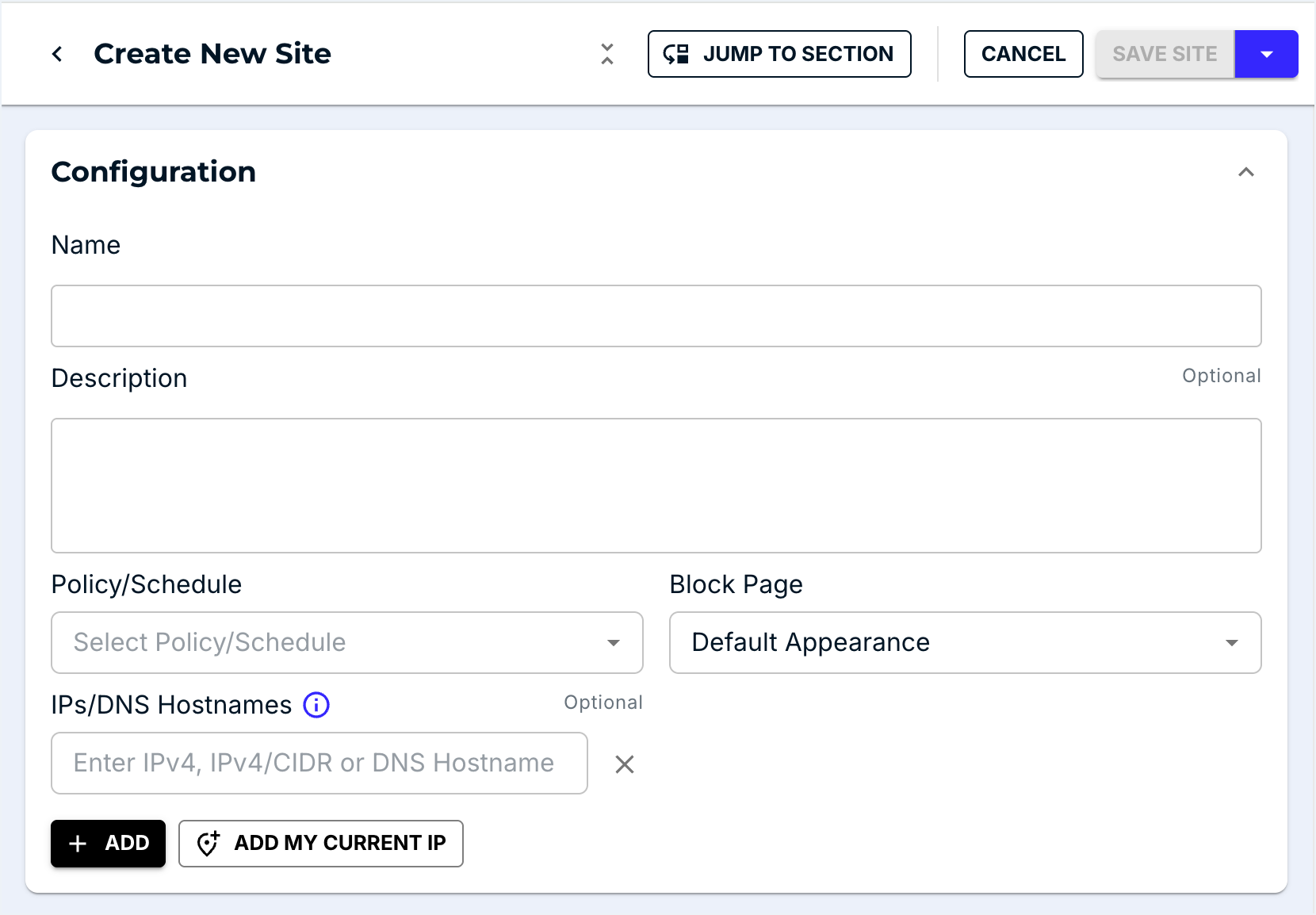
Add the Site with the right IPs / subnet / DDNS hostname. Assign a Filtering Policy at the same time, never leave a Site policy-less, even temporarily. For Roaming Client devices, push the agent via your RMM or AD/Entra deployment.
If the customer is on a residential connection, use DDNS
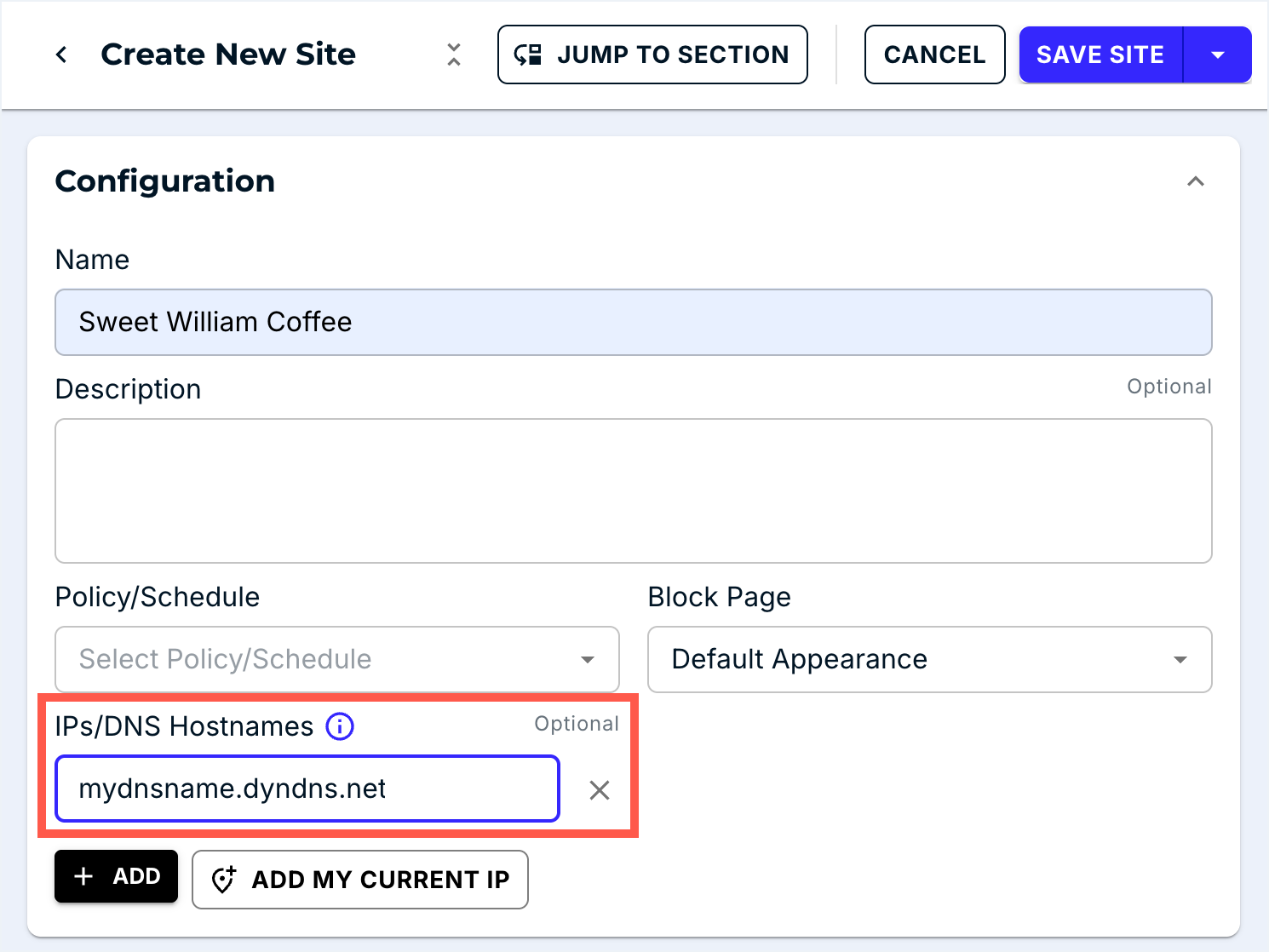
The decision tree above branches between static IP and DDNS. For dynamic-IP customers, register a DDNS hostname (No-IP, the customer’s router DDNS, etc.) and put it in the Site’s identifier field. DNSFilter rechecks the record automatically.
Test on one device first
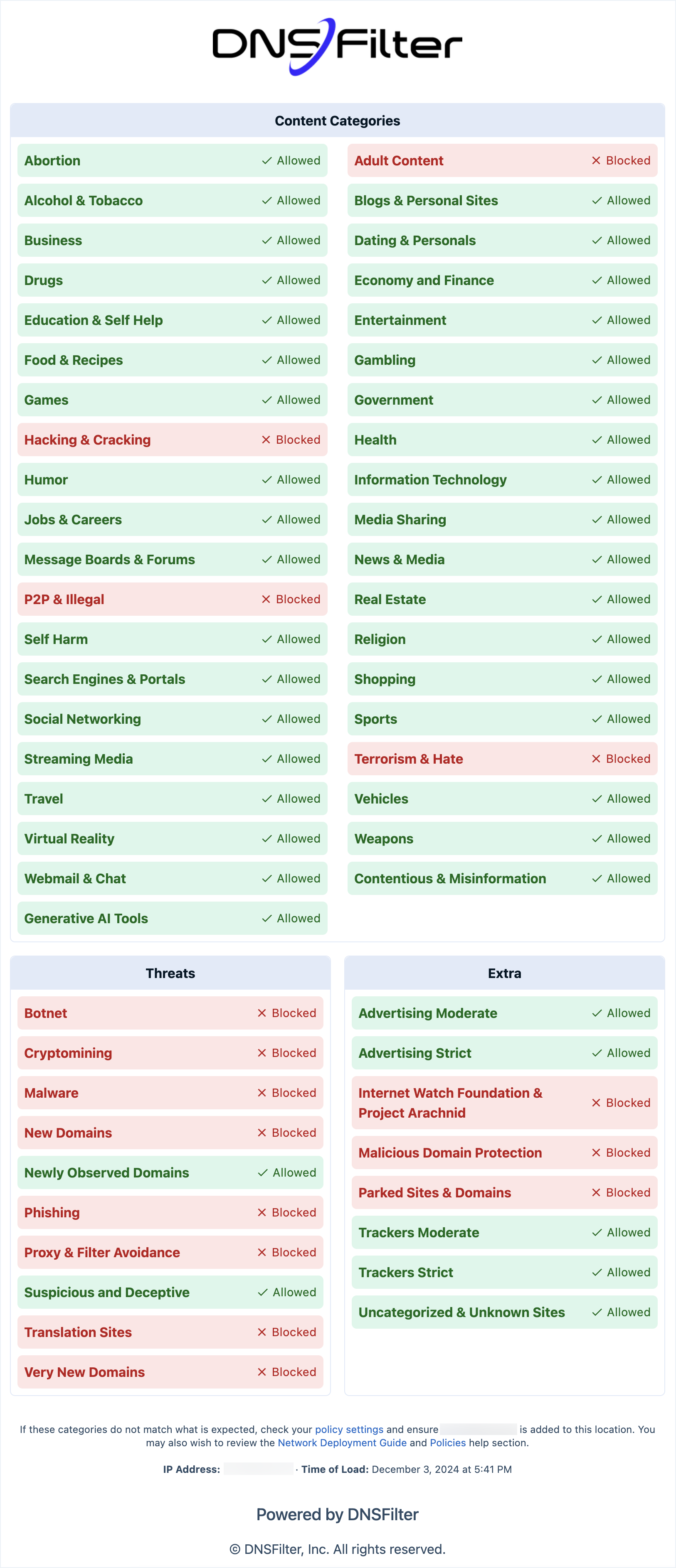
DNSFilter explicitly recommends configuring DNS Forwarding on one computer first to test the policy and check for conflicts. Browse to
debug.dnsfilter.com; the page confirms the resolver path and shows the active categories.Roll out to the rest of the network
Once the single-device test confirms forwarding works, change the firewall or router DNS settings to apply for everyone. Do this in a maintenance window, it’s an instant cutover for every device on the network.
Watch the Query Log for the next four hours

A successful rollout shows a steady stream of queries from the Site. A failed one shows zero. If the Sites view flags zero queries within five minutes, roll back the firewall change and diagnose before re-attempting.
The encrypted-DNS gotchas
These are the hidden traps. None of them produce a clean error message, they produce “the customer is suddenly unfiltered and nobody knows why.”
| Issue | What’s happening | Fix |
|---|---|---|
| Browser DNS-over-HTTPS (DoH) | Chrome, Edge, Firefox can resolve via their own DoH endpoint, bypassing the network’s DNS. | Block the browsers’ DoH endpoints at the firewall, or push a managed-browser policy that disables DoH. DNSFilter also offers DoH-as-DNSFilter for some setups. |
| iCloud Private Relay (Apple) | Encrypts and tunnels DNS, bypassing DNSFilter on iOS / macOS. | DNSFilter already returns NXDOMAIN for mask.icloud.com, mask-h2.icloud.com, and use-application-dns.net, which disables Private Relay at the resolver. Blocking the same hosts at the firewall is the belt-and-braces step on top of that. |
| Random apps with hardcoded DoH | Some apps (notably some VPN clients, some games) hit 1.1.1.1 or 8.8.8.8 directly over DoH/DoT. | Firewall rules forcing DNS to DNSFilter; see DNSFilter’s “Preventing content filtering circumvention” article. |
| User changes their device’s DNS | A laptop user sets 8.8.8.8 manually. | Block direct outbound DNS at the firewall (only allow DNS to DNSFilter’s anycast resolvers). For roaming devices, the Roaming Client handles this by intercepting locally. |
The rollback plan
Every site rollout has a back-out path agreed before you start:
- Firewall / router has the previous DNS forwarding configuration ready to restore.
- The MSP knows the customer’s emergency contact; the customer knows the MSP’s.
- If it’s a Roaming Client deployment, the uninstall command is documented and tested.
- The maintenance-window message to end users includes “if anything’s broken, message X.”
A rollout you can’t roll back is a rollout you shouldn’t run. Reassess the deployment every six months too: DNS-hijacking patterns from apps and browsers shift quickly, and what worked at deployment may not be working today.
Worked rollout: Able Moose Accounting Sydney office
| Step | Detail |
|---|---|
| Pre-flight | Static IP from their ISP (203.0.113.42), one WAN, FortiGate firewall. Hybrid working, laptops travel home in the evening. |
| Site setup | New Site AbleMoose-SYD with IP 203.0.113.42; assigned to AbleMoose-Override-Prod. |
| Roaming Client | Pushed via Intune to all laptops, same policy assignment. |
| Test device | One IT laptop reconfigured manually to use a DNSFilter anycast resolver; debug.dnsfilter.com confirms the path; Query Log shows the test queries. |
| Cutover | Maintenance window 7am Saturday. FortiGate DNS rule changed; observe Query Log for 30 minutes; ticket in PSA confirming success. |
| Rollback | Old DNS rule saved as a disabled policy on the FortiGate, ready to re-enable in 10 seconds. |