Block page UX, what users actually see, and how to cut your ticket volume
Customise hosted block pages with a logo, organisation name, and notice email so the page deflects half the would-be tickets before they reach the helpdesk.
The block page is the moment a user finds out something’s blocked. Done well, half of them won’t open a ticket, they’ll click the contact link, send a one-line request, and move on. Done badly, every block becomes a phone call.
What’s actually customisable
DNSFilter offers two block-page modes; only one of them is customisable in any meaningful way:
- Hosted block page: DNSFilter renders it on their infrastructure. You can customise its branding (logo, organisation name) and the notice email users contact when something looks wrong.
- External block page, really just a redirect to a custom web location you host. DNSFilter doesn’t render it, so the customisation is whatever you build at the destination.
For most MSPs, hosted is what you want. It supports the customisation that matters at no infrastructure cost.
The hosted page surface includes:
- Custom logo, uploadable, or leave blank for no logo.
- Organisation Name, appears as the party responsible for blocking the domain. Critical for trust (“blocked by your IT team” ≠ “blocked by some nameless service”).
- Notice email, the contact for unblock requests, embedded in the page as a form. Leaving it blank disables the form.
- Languages, around a dozen supported, displayed based on the end-user’s browser language. The exact list shifts as DNSFilter ships new translations; check the Block Page settings panel for the live list.
A configured hosted block page looks like this:
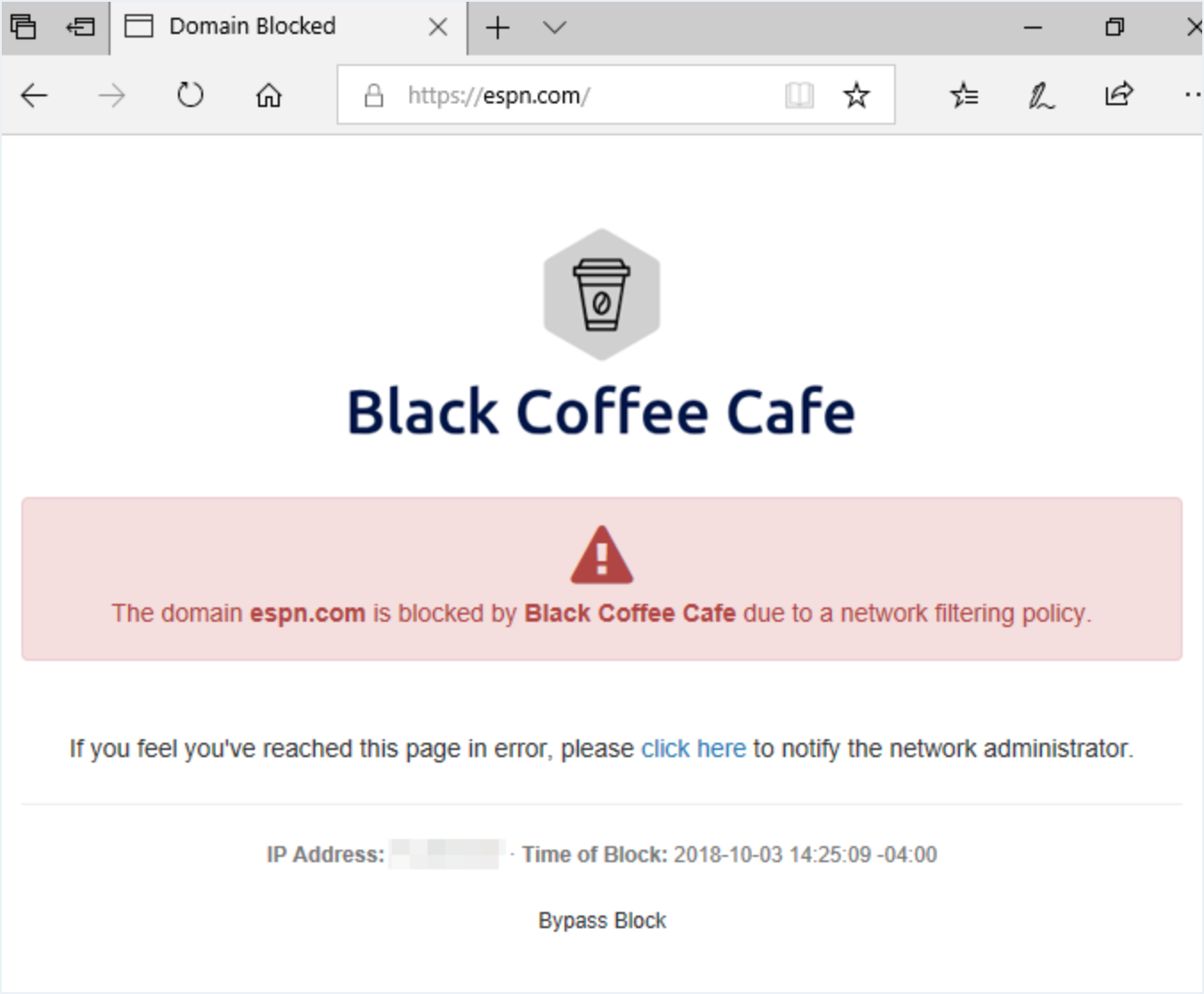
Hosted block pages render the org’s uploaded logo. End-users should recognise it as their filter, not a generic error page.
Pulls from the matching filter category (e.g. Adult Content) or threat (Phishing). Don’t override this with marketing copy.
Confirms the FQDN the user actually requested. Frontline techs paste this back into the Query Log filter to find the matching event.
Mailto link routed to the org’s notice address. Stops the helpdesk getting paged for false positives.
Policy name and source IP. Match this against the Sites table to pin the blocking surface.
UTC timestamp of the block. Same value the Query Log records, so a paste-and-search lands the same row.
The HTTPS reality
This trips up techs new to DNS filtering. When the user navigates to a blocked HTTPS domain, the browser tries to negotiate TLS with the IP DNSFilter returns. Because the block-page server can’t present a valid certificate for the user’s intended domain, the browser shows a TLS error, not the block page.
What that means for design:
- For HTTP requests, the user sees the block page.
- For HTTPS requests, the user sees a browser certificate error.
- A small minority of clients still display some content in the certificate warning, but most modern browsers refuse the connection without showing the block page at all.
You can’t fix this fully on the DNSFilter side, it’s intrinsic to how DNS filtering works at the resolver. What you can do is design your customer-facing communications around it: when a user reports “I just got a TLS error and have no idea why”, that’s often a DNS block. Train ticket-takers to ask “did you try to visit anything unusual just before the error?” and check the Query Log.
The Bypass Password is gone
For a long stretch the hosted block page offered a Bypass Password, an admin-set string a user could enter to click through a block. DNSFilter removed that feature in late 2024 because of the security risk it carried. A bypass password lifted every category and threat block for the entire browser session, with no granularity. There is no replacement that does the same thing, by design.
The supported paths now:
- Allow list entry, add the specific domain to the policy’s Allow list (or the Universal Allow list if it should apply org-wide). Effective immediately.
- Block page notice email + embedded form, the user submits a request from the block page; the MSP responds via the same channel and adds an Allow entry if appropriate.
If a customer’s existing playbook still references the Bypass Password, that playbook is out of date. Replace those references with the Allow-list-and-form pattern.
Worked example: the per-customer block page
Able Moose Accounting wants users to email it@ablemoose.example if a block looks wrong. The MSP-managed setup:
| Field | Value |
|---|---|
| Custom logo | Able Moose logo (uploaded, 200×200 PNG) |
| Organisation Name | ”Able Moose Accounting” |
| Notice email | it@ablemoose.example |
| Block page assigned to | AbleMoose-Override-Prod policy |
That’s it, five fields, no infrastructure. When Sarah hits a block, the page tells her which company is blocking the request and who to email, with a form she can submit without leaving the page. If the customer needs an auditable approval trail (who asked, who decided, when), route the notice email into a ticketing system rather than a shared mailbox.