Reading a Huntress Incident Report
Signals, investigations, and reports are three different things. A four-question routine for turning a new incident report into the right action without skipping the part the SOC already did for you.
A new Incident Report landing in the helpdesk inbox is the SOC saying “we are confident something bad happened, here’s what we saw and what we want done about it.” The temptation on the helpdesk is to start poking at the endpoint before reading the report. Resist it.
Signal, investigation, incident, three different things
Per the Signals Investigated documentation:
- Events Analysed. The full firehose of telemetry the platform processes for an account. Tens of thousands per month.
- Signals. Interesting events the SOC’s automation flagged. A signal alone is not a confirmed threat; it is a lead. A
whoamifrom a command line is a signal; so is a known-malicious file hash. - Signals Investigated. Signals that crossed the threshold for a human SOC analyst to look at.
- Incidents Reported. Investigated signals the analyst confirmed as malicious. These are the ones that show up in your inbox.
When a report arrives, the SOC has already done the first three steps. Your job is the fourth.
The shape of a report
An Incident Report has a fixed anatomy: severity badge, lifecycle status, remediation tabs, approval action, resolve action. The same shape every time. Read the badge, read the body, read the Remediations and Footholds tabs, then act.
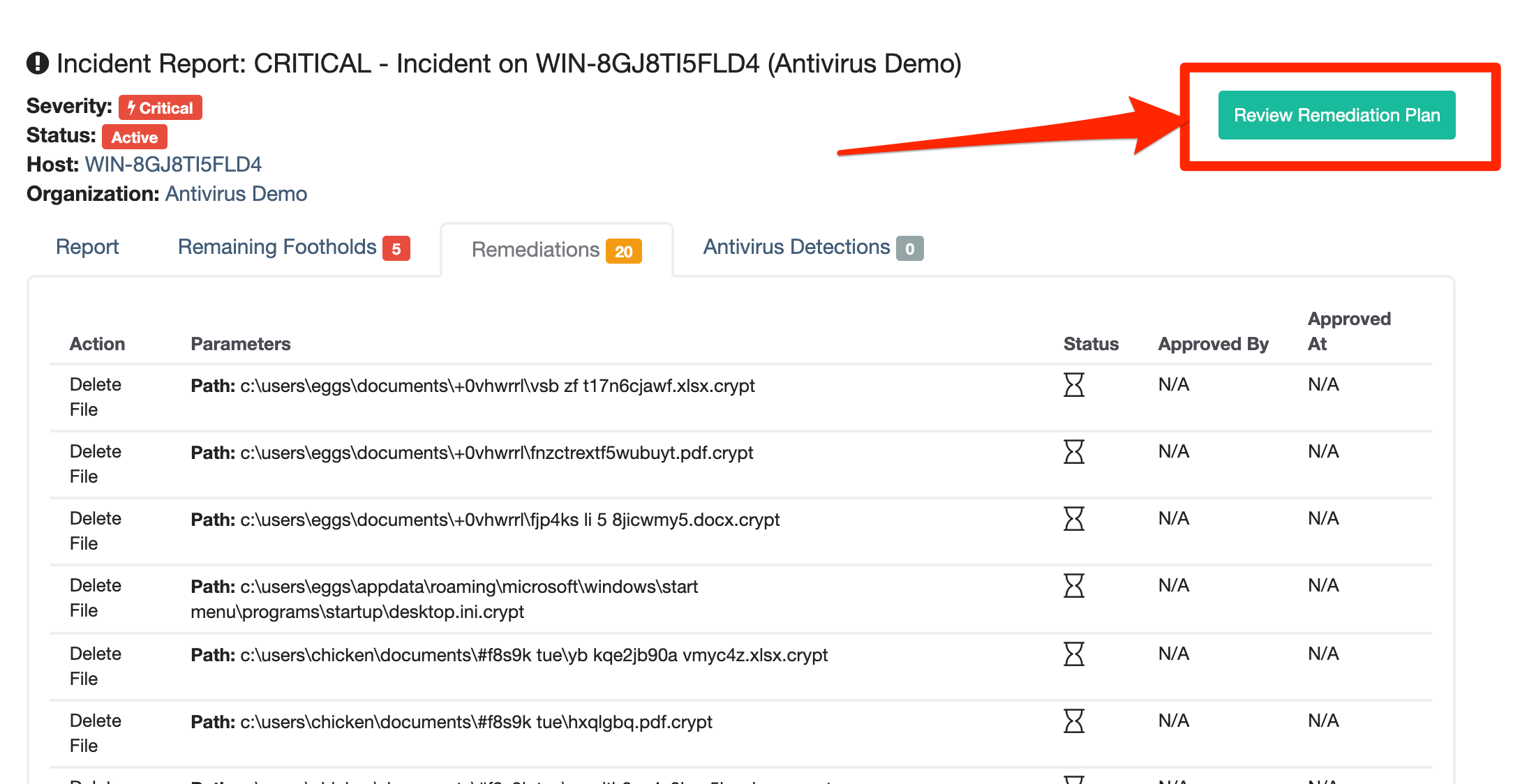
Critical pages the on-call senior. High is act-within-an-hour. Low is working-day work. The badge is the first thing you read.
Active means the SOC is still on it. Resolution requires partner approval of the remediation plan; you can’t resolve an Active report without that step.
Each foothold is a re-entry point. Reading these justifies the response time and tells you whether containment alone is enough.
Assisted = Huntress runs it after you approve. Manual = you run it. Both = you finish what they started. None = informational, acknowledge and resolve.
Opens the plan with Approve and Reject buttons. Approval is the partner’s OK to proceed with Assisted Remediation; Reject sends it back to the SOC with a comment so they can revise.
The four questions to answer before you act
Walk these in order against every new report.
1. What is the severity, and what does that mean for tonight?
Reports come tagged Critical, High, or Low. Critical and High mean the SOC believes there is active or recent malicious activity; Critical reports unlock the Request SOC Support button (callback, chat, or email to incidents@huntress.com) for Account Admin and Security Engineer roles. Low reports are still real findings, but they are not “wake somebody up” reports. Triage them in business hours.
2. What did the SOC actually find?
The report body describes the malicious activity, the indicators of compromise, and the user accounts and systems involved. Read it before opening the remediation tab. If you cannot tell from the report what kind of attack this is (phishing landing, malware persistence, identity compromise), you are not ready to remediate yet.
3. What is the remediation plan?
Reports come with one of four shapes:
- Assisted Remediation only. The SOC can run the remediation tasks itself once the partner approves. You review the plan, click Approve, and Huntress handles the cleanup.
- Manual Remediation only. Human-only steps the helpdesk performs (re-image, reset credentials, re-enable services). Acknowledge the plan, walk the steps, then resolve.
- Both Assisted and Manual. Approve the assisted side; do the manual side.
- No remediation. Informational. Acknowledge and resolve.
Per the Manual Remediation guide: marking individual manual steps complete is optional, but resolving the report acknowledges the plan as understood. If a remediation has not been reviewed or approved, the report is not eligible for resolution.
4. Is host isolation already in play, or do you need it?
The SOC can isolate a host during an active critical incident, traffic from the host is dropped except for Huntress’s own communication channel. If the report says the host is isolated, that is a containment action you respect, not undo. Releasing isolation happens after remediation, deliberately.
A worked report: Able Moose Accounting
The SOC has sent a High severity report against AMA-LAPTOP-04 at Able Moose Accounting. The summary describes an unauthorised scheduled task launching powershell.exe -enc <base64> at user logon, persistence behaviour rather than active beaconing.
Read the full report before clicking Remediation
Severity High; persistence via scheduled task; user account
office.manager@ablemoose.example; no observed lateral movement. The remediation plan has both Assisted (kill the scheduled task, quarantine the staged binary) and Manual (rotate the local admin password, ask the user about anything they downloaded that day).Approve the Assisted Remediation
Click Review Remediation Plan, then Approve. Huntress queues the cleanup tasks against the agent. Tasks run when the agent next surveys. Reject opens a comment dialog that sends the plan back to the SOC; use it when something in the listed actions doesn’t match the environment.
Walk the Manual Remediation steps
Mark the local admin password rotation complete after you do it. Talk to the office manager: where did they download from, did they receive an email asking them to run something, do they recognise the filename in the report.
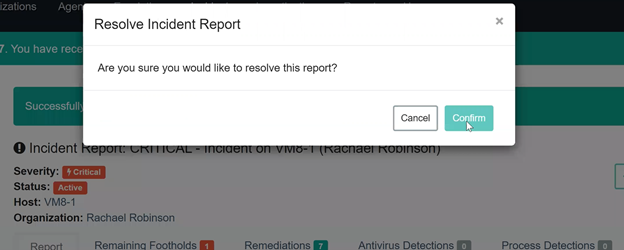
Resolve the report
Once the assisted side has run successfully and the manual steps are done, click Resolve. If the SOC’s remediation tasks fail, the report blocks resolution until they complete.
False-positive patterns to watch for
The SOC tends not to send reports that are obvious false positives, the human review filters those out at the investigation stage. The patterns that do sometimes show up as reports and warrant a closer look in your write-up:
- A legitimate sysadmin tool the customer’s own IT person ran during after-hours maintenance.
- An RMM script the SOC could not attribute to the partner’s RMM (rare, but it happens during a tooling change).
- A penetration test the customer commissioned but didn’t tell the MSP about.
If the report seems off after a careful read, the right move is to use Request SOC Support from inside the report, not to silently ignore it. The SOC will tell you whether they want more context or whether the report should be revised.
What this is NOT
- Not an alert you should debate before acting. The report represents human SOC review. Treat the remediation plan as the default action; the discussion is whether to change anything, not whether to act at all.
- Not a forensic record. The report is a working document scoped to remediation. For deeper post-incident analysis, the SOC’s transparent-tradecraft write-ups and the partner’s own logs are where you go. Advanced lesson five revisits this.