Tour of the Huntress portal
The six places a helpdesk technician needs to find without thinking, organisations, agents, incidents, investigations, escalations, reports, plus the icon rail that gets you to Process Insights, canaries, and Managed AV.
The Huntress portal is built around two layers, the Account (the MSP) and Organizations beneath it (each customer). When you land on the dashboard, the top nav and the icon rail tell you where you are and how to move between them. Always check which Organization you are in before you take action. A click on the wrong customer’s agent is a real, recurring mistake.
The portal at a glance
The Command Center gives you the fastest read on the portal. Use it to confirm the scope, find the customer surface, and see whether Huntress wants action from the MSP.
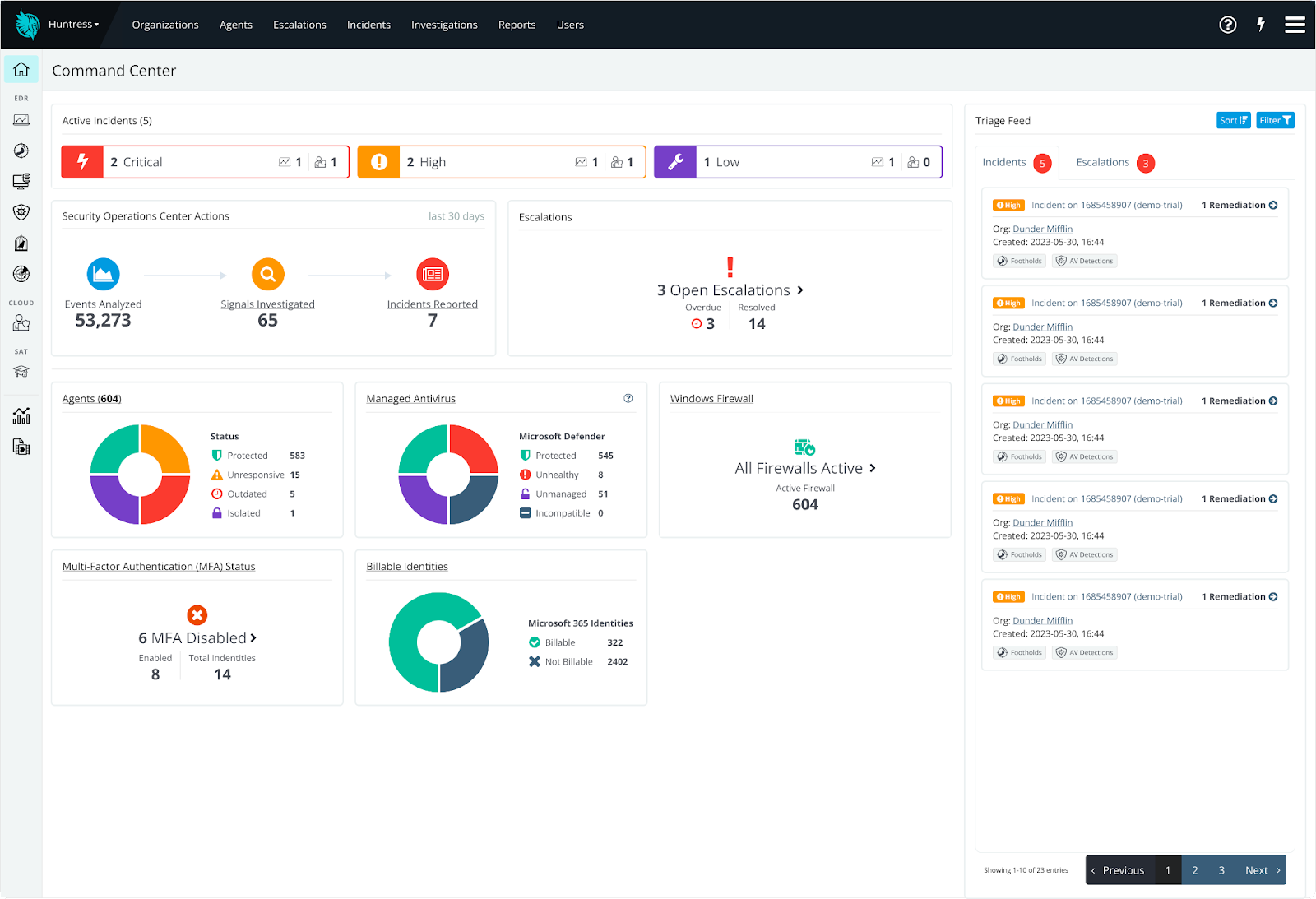
Check this before agent moves, incident review, or settings changes. If the label shows the MSP account, open the customer Organization first.
Use this when a ticket names a customer, when an agent landed in the wrong Organization, or when a colleague cannot see a tenant.
Open Agents to check hostname, operating system, last-seen time, agent version, EDR version, and Organization placement.
Incidents drive tickets. Open the report, read the remediation plan, complete the customer-side actions, and record the outcome in the PSA.
Use the rail for EDR, Process Insights, ransomware canaries, reports, and Managed AV. Hover labels help when the icons are still unfamiliar.
Open escalations when Huntress flags something that needs partner context or action before it becomes a full Incident Report.
Sort and filter this panel when a PSA ticket, email, or customer call references a Huntress alert. It keeps recent work in one place.
Endpoint, Defender, firewall, MFA, and identity cards help you find unresponsive agents, outdated components, disabled MFA, and other hygiene work.
Two views use the same portal furniture. At the Account level you see every customer; at an Organization level the same widgets show only that customer’s data.
The six places to know cold
| Surface | What lives there | When you go there |
|---|---|---|
| Organizations | The list of customers under the MSP account, agent counts, billing-relevant metadata. | Switching to a customer’s view; finding a specific tenant. |
| Agents | Every endpoint registered to the chosen scope. Hostname, OS, last-seen, version. | Confirming an install registered, checking unresponsive hosts, moving an agent to the right Organization. |
| Incidents | Confirmed compromises the SOC has reported. Severity (Critical / High / Low), remediation plan, status. | Acting on a new ticket from the SOC; acknowledging remediation. |
| Investigations | Signals the SOC analyst has touched, including those that turned out benign. Useful context. | Understanding why something didn’t escalate; reviewing recent activity for a customer. |
| Escalations | Items Huntress has flagged for partner action that aren’t yet full Incident Reports. | Reviewing the Huntress-raised queue that needs MSP context or sign-off before it progresses. |
| Reports | Monthly and quarterly threat-summary reports; per-customer activity. | Customer business reviews; reconciling what Huntress saw. |
The icon rail down the side is how you reach the module-specific surfaces. Per the help-centre side-menu reference, the foot icon goes to footholds (Incidents), the computer icon goes to Process Insights, the birdcage goes to Ransomware Canaries, the sonar goes to External Recon, the bar graph is Reports, and the shield is Managed Defender Antivirus.
Switching between Account and Organization
The top-left dropdown is the tenant switcher. Click it to drop into a specific Organization, click it again to bounce back to the top-level Account view. A few habits:
- Read the dropdown label before you act. “Account level” looks similar to a small Organization name on a busy day.
- Move agents deliberately. When an agent registers under the wrong Organization (mismatched Organization Key during install), the documented fix is the Move To button on the Agents page. Select the agent, click Move To, pick the right Organization, confirm.
- Account Admin and Security Engineer roles see all Organizations. Other roles see only what they’re assigned to. Keep that in mind when a colleague says “I can’t see that customer.”
A worked check: Able Moose Accounting
Sarah at Able Moose Accounting (15-person bookkeeping firm, single office) reports that the new laptop her office manager set up “isn’t on the security thing yet.” A frontline check:
Switch to the Able Moose Organization
Top-left dropdown, search “Able Moose”, click. Verify the breadcrumb shows the customer name before you do anything else.
Open Agents
Top nav, Agents. Sort by Last Seen descending so the freshest registrations are at the top.
Look for the hostname
Hostname matches the laptop’s machine name. If it appears with a recent Last Seen timestamp, the agent registered. If it does not appear at all, the install never reached the platform; that goes back to the install lesson.
Check the EDR Version column
For endpoints that support Process Insights, the EDR component (Rio) installs about an hour after the base agent. An agent that registered five minutes ago may show a base version but no EDR Version yet. That is expected.
What this is NOT
- Not a place to download per-endpoint logs. Detailed logs live on the endpoint (
C:\Windows\Temp\HuntressInstaller.log,C:\Program Files\Huntress\HuntressAgent.log) or are pulled by the SOC during an investigation, not exposed in the portal as a file download. - Not where the SAT and ITDR data live. SAT has its own admin platform at mycurricula.com (Curricula was the SAT acquisition); ITDR is a separate dashboard surface inside the portal driven by the Microsoft 365 integration.