PSA and RMM integration without the sprawl
One-PSA-at-a-time, the Organization Mapping problem, automatic mapping, sending test tickets, and what closes the loop when the SOC remediates an incident.
Huntress generates incidents; the PSA generates tickets; the RMM does the install. Whichever directions you pick, the goal is the same: every confirmed incident becomes a ticket in the customer’s queue, and tickets close themselves out when the work is done. Two specifics that catch people the first time: one PSA integration per Huntress account, and Organization Mapping has to match exactly between Huntress and the PSA.
The integration set
Per the Incident Report Integrations article, integrations break into three categories:
| Category | Examples | Job |
|---|---|---|
| Incident Reporting (PSA) | ConnectWise Manage, Autotask, BMS by Kaseya, HaloPSA, Syncro | Create and update tickets from incidents. One per account. Auto-map currently covers ConnectWise, Autotask, HaloPSA, and BMS; Syncro auto-map is documented as planned. |
| Generic SMTP recipient list | A separate integration; runs alongside any PSA integration. | |
| Cloud Platforms | Microsoft 365 (ITDR), Microsoft Defender for Endpoint forwarding | Cloud-side telemetry sources. |
Plus the documented “send incident notifications via SMS” path for after-hours coverage.
The “one PSA at a time” rule is the documentation’s wording, not an editorial paraphrase. If the MSP runs ConnectWise Manage and Syncro across customer segments, only one is the integration target; the other is an email recipient or sees nothing.
The Organization Mapping problem
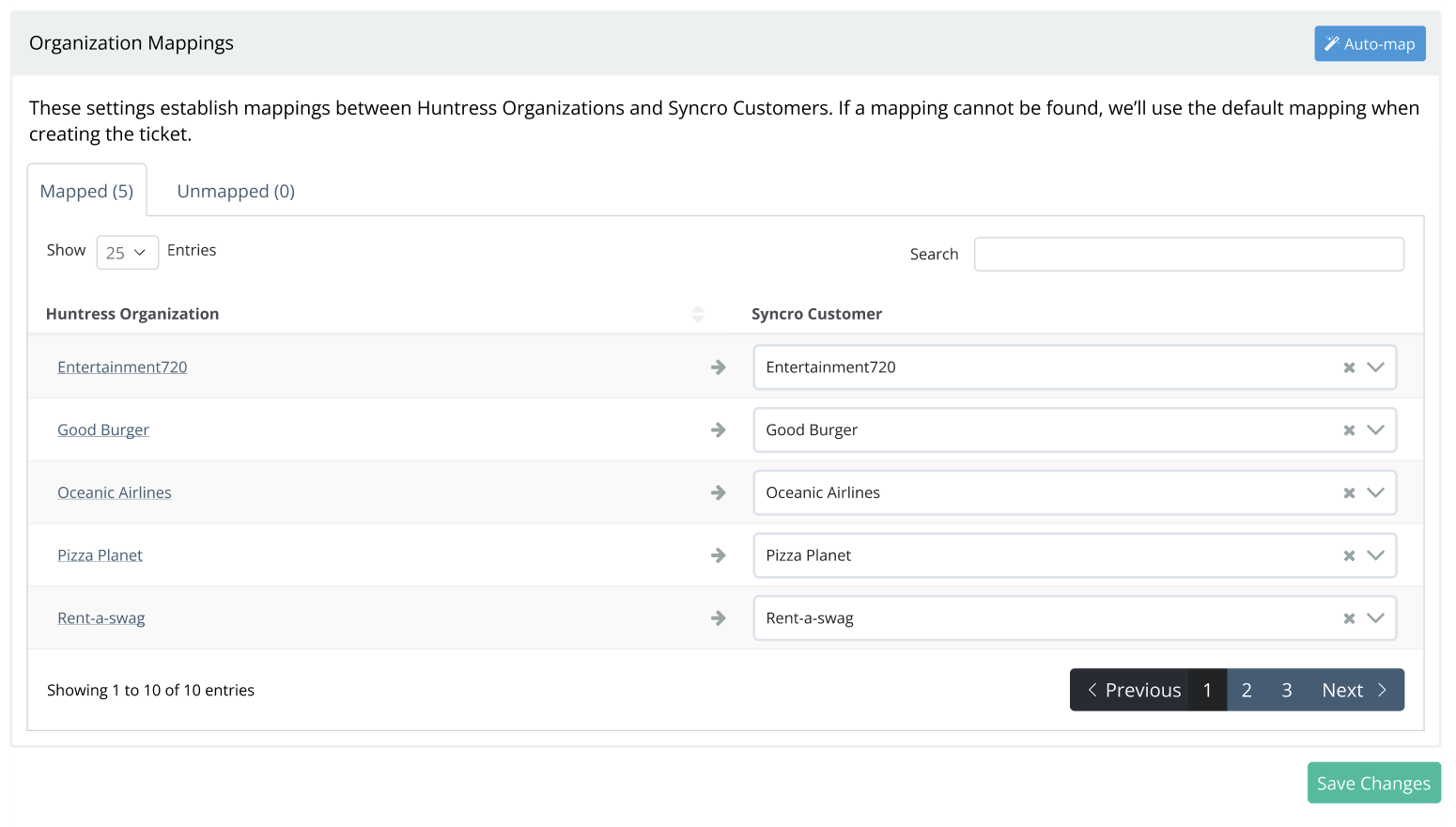
Huntress has Organizations. The PSA has Companies / Sites / Customers. They are not the same naming, and the integration only routes tickets correctly if the mapping is right. Per the PSA Automatic Mapping article, automap works on exact name matches, and supports ConnectWise Manage, Autotask, HaloPSA, and BMS by Kaseya today; Syncro support is documented as planned (when it ships, the mechanics carry across).
The auto-map results modal is the document you read first. The match summary tells you how many Organizations slotted in cleanly and how many need a manual pair.
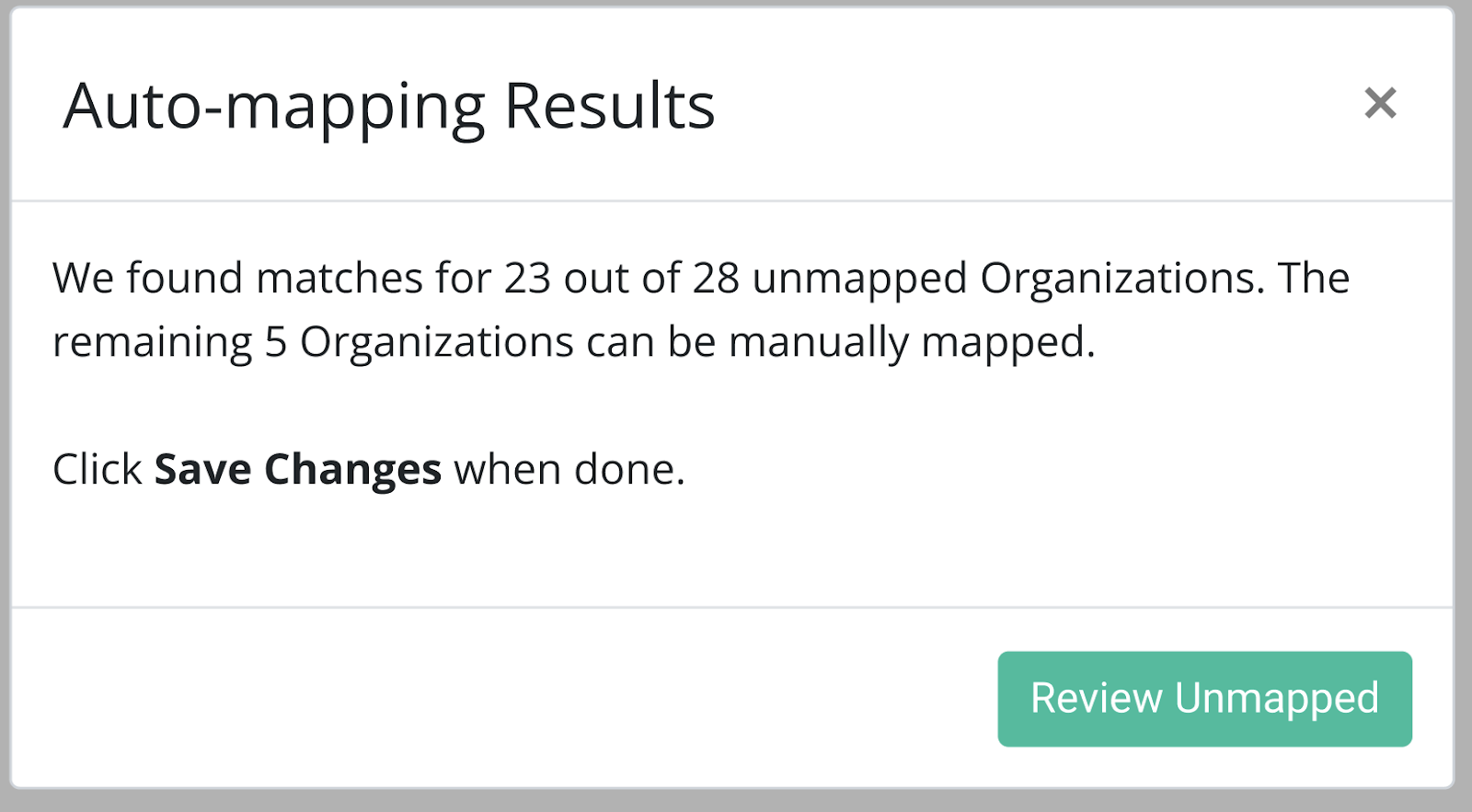
Auto-map matches Huntress Organizations to PSA customers by exact name. The unmatched ones are typically name drift, apostrophes, Inc / LLC suffixes, parent / child confusion.
Per-row override for the unmatched. Once you hand-pair them, the mapping holds across regenerate cycles.
The Organization name as Huntress sees it. The matcher is exact-only; no fuzzy logic, no whitespace forgiveness.
The PSA’s customer record. After mapping, every Huntress incident creates a ticket against this PSA customer.
Mapped = green, Unmapped = amber. Filter to amber before each run; that’s where the work sits.
The pattern that minimises sprawl:
- Decide the canonical company name before you create either side.
- Use the same convention for both. If the PSA has “Able Moose Accounting Pty Ltd”, make the Huntress Organization match exactly.
- For new customers, create the Huntress Organization first (via the Organization Key during agent install), then create the PSA Company with the matching name. Then run automap.
For existing setups with mismatched names, walk the Organization Mapping page and manually map until everything’s connected. Auto-map handles the rest as new customers come on.
The supported PSAs and what they each need
Each PSA has its own setup article; the cross-cutting parts:
- An API user in the PSA. Huntress recommends naming it “Huntress Labs API” or similar. The user has the role / permissions Huntress’s setup guide specifies.
- An API key / OAuth credential copied into Huntress’s Integration page.
- A default queue / board / status on the PSA side for new tickets.
- A Send Test button on the Huntress integration page. Click it. If a test ticket lands in the right queue, the integration works.
Per the Autotask PSA article (representative of the pattern), the integration was updated to REST in December 2021; SOAP-era integrations need delete-and-recreate to match the new API.
The HaloPSA-specific note, from the HaloPSA Ticket Integration article: the Huntress app inside HaloPSA exposes Resource Server, Authorisation Server, and Tenant ID URLs from the HaloPSA admin side; those go into the Huntress integration page along with a HaloPSA OAuth client. Default client and incident-status mapping are configured per integration.
Closing the loop
The integration isn’t just for ticket creation; it’s for ticket closure.
| What happens in Huntress | What should happen in the PSA |
|---|---|
| New incident report | New ticket created in the Huntress queue |
| Severity changed | Existing ticket updated (severity field, body) |
| Remediation approved | Ticket status reflects remediation in progress |
| Incident resolved | Ticket status moves to a resolution status the PSA recognises |
The Autotask article calls out the Set Status after Huntress Remediation field, which automatically updates the PSA ticket once remediation is approved or rejected on the Huntress side. Equivalent fields exist on the other PSAs. Set them. Without it, tickets stay open after the incident is gone.
Sending the test ticket
Configure the PSA integration end-to-end
API user, key, target queue, default statuses, Organization Mapping confirmed.
Click Send Test
On the Huntress Integrations page, next to the PSA integration, click Send Test. A test ticket appears in the PSA’s Huntress queue.
Verify the ticket lands in the right Organization
Open the test ticket in the PSA. The Company / Site field should match the Huntress Organization. If it lands under a generic “default client”, Organization Mapping is incomplete.
Confirm the close-loop status
Mark the test as Resolved on the Huntress side; watch the PSA ticket move to the Resolution status you configured. If it doesn’t, the Set Status after Remediation mapping isn’t right.
RMM integration is a different concern
The RMM’s job is the agent install (covered in the Beginner course’s install lesson). Beyond that, the RMM is not a Huntress integration in the same sense. There’s no incident-flow into the RMM. The relevant RMM-side concern is keeping the deployment script current: NinjaOne, Datto RMM, Syncro, ConnectWise Automate, and Atera all have documented Huntress install scripts. Pin them to a custom field or global variable, refresh from the Huntress GitHub once a quarter, redeploy.
A worked integration: Able Moose Accounting (mid-market)
Able Moose’s MSP runs HaloPSA. Up to now, Huntress incidents have been emailed to a shared distribution list because nobody set up the integration.
Decide the integration shape
HaloPSA is the PSA integration. The shared email distro stays as the Email integration for after-hours visibility. The MSP doesn’t run two PSAs, so there’s no conflict.
Walk the HaloPSA setup
In HaloPSA: create the Huntress integration in HaloPSA’s app store; capture Resource Server URL, Authorisation Server URL, Tenant ID, and an OAuth client/secret. In Huntress: Integrations -> + New Integration -> HaloPSA, paste the values, pick the default client and target ticket queue.
Auto-map customers
Click Auto-Map. Huntress matches Organizations to HaloPSA clients by exact name. The unmapped ones are reviewed manually; mostly they’re a name-format mismatch the team fixes by editing the HaloPSA client name to match Huntress.
Send the test
Click Send Test next to the HaloPSA integration. The ticket lands under Able Moose Accounting in the HaloPSA queue. Resolve it on the Huntress side; watch HaloPSA close the ticket.
Brief the team
The team’s morning routine now starts with the HaloPSA Huntress queue, not the email distro.
What this is NOT
- Not a place to run two PSAs. The product supports one PSA integration at a time. If the MSP genuinely needs two (during a PSA migration), the right approach is to send incidents to one PSA and forward via Email integration to the other for the migration window, not to fight the platform.
- Not how billing reconciliation happens. The PSA integration is for incident tickets; billing comes from Huntress’s own billing report (covered in the Advanced course).