Secure release and pull-printing basics
How Print Later, Print Anywhere, and the Printix App combine to hold confidential jobs on the user's computer until they walk to a printer and authenticate.
Secure release is the feature that gets a customer over the line on Printix. It is the answer to “I’d love to stop my payroll printouts piling up at the printer.” Holding the job and only releasing on demand is the lever, and Printix exposes it through two print methods plus the Printix App.
What gets held, and how
The vendor’s own diagram for Print Later anchors the moving parts: the laptop, the held job, the phone or printer the user authenticates at, and the printer that finally prints.
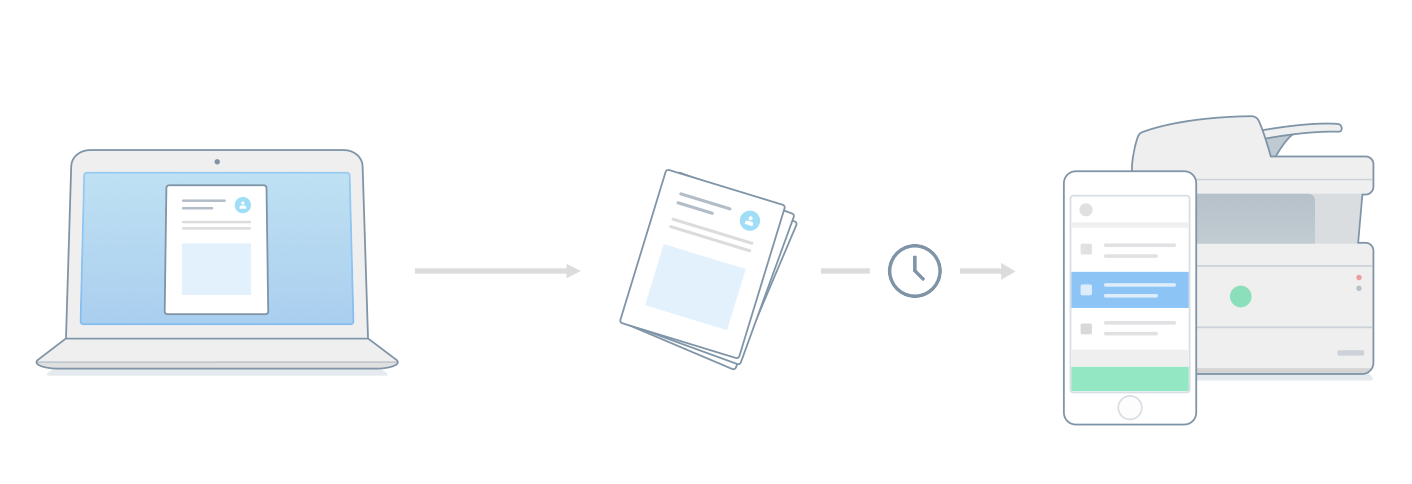
The Printix Client stores the job locally, encrypted, until release. Default behaviour; cloud storage is the override.
Print Later jobs sit on the laptop. Print Anywhere jobs sit the same way but the user picks the release printer at the device.
The Printix App on a phone, in a browser, or the Go touchscreen on a supported MFP. All three resolve to “this user has authenticated, release the job.”
The page comes out at the printer the user is standing at. No more “whose printout is this?” pile.
Three jobs go through three paths:
- Direct print. The default. The job is sent to the selected printer immediately. No hold, no release. Best for non-confidential prints where the user is already standing at the device.
- Print Later, to a specific printer. The user prints to a particular print queue. The job sits encrypted on their computer until they release it from the Printix App. Documents print at that specific printer with the matching driver, which means finishing options (stapling, hole-punch, paper tray) work correctly.
- Printix Anywhere. The user prints to a virtual queue. They can release the job at any Printix-managed printer the customer has enabled for Printix Anywhere. Trade-off: if the release printer doesn’t support PDF natively, Printix processes the job with a universal driver, so very specific finishing options can be lost.
The Printix documentation puts it bluntly: “Wait until you arrive at the printer, then release the documents using your phone.” That’s pull-printing in one sentence.
How a user releases a job
Three release paths, depending on what the customer enabled:
| Path | What the user does | Customer prerequisites |
|---|---|---|
| Printix App on phone (mobile) | Open the app, tap the printer (or scan its QR code), select documents, release | Printix App installed; user signed in |
| Printix App in a browser | Open customer.printix.net on phone, tablet, or computer; same flow | Always available, no install |
| Printix Go on the printer’s touchscreen | Walk up, swipe a card or enter ID code + PIN, select documents, release | Printix Go installed on that specific MFP |
Printix Go is a touchscreen app you install on supported MFPs. It removes the phone-required step. The Advanced course’s third lesson is the Printix Go rollout playbook; the Beginner-course scope is “be able to recognise that the customer has it, or doesn’t.” Don’t confuse it with the Printix App: the App releases jobs from a phone or browser, Printix Go is the printer-side terminal. A customer can have one, both, or neither.
A worked ticket: Riverbend Legal
Riverbend Legal, the small law firm that lives on confidentiality, opens a ticket: “I released a court filing from my phone but it never printed.”
Confirm what the user did
Ask exactly which app, which printer, and what time. The Printix App on iOS, releasing a job called “Smith vs Smith filing” to the reception MFP at 14:32. Print method was Print Later.
Check the user's Printix App History
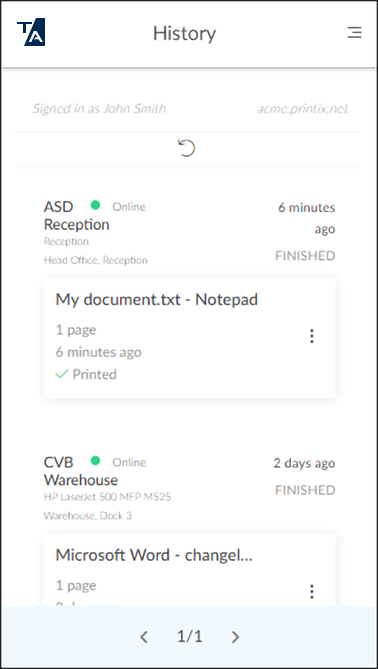
The user opens History in the Printix App. Documents printed in the last 30 days are listed there. “Until a document is deleted, it appears with its document name.” The job shows as released but no successful print confirmation.
Find the user's computer in the Administrator
Menu, Computers. The lawyer’s MacBook last reported online at 12:40 and is currently Offline. They closed the laptop after submitting the job, walked to the printer, and the source machine wasn’t reachable.
Resolve
The job is stranded. Have the user reopen their laptop on the office network, then re-release. For the chronic case, escalate to the customer’s account team to enable Azure Blob Storage so future Print Later jobs aren’t tied to the computer being awake.