Reading the Unified Audit
How to use the Unified Audit's filters to answer the two questions the helpdesk asks every shift, what happened on this machine, and was anything denied.
The Unified Audit is the central log for every ThreatLocker policy match. Where the Response Center shows requests waiting on you, the Unified Audit shows what actually happened: every Permit, every Deny, every Ringfenced action, across every module.
The two questions you’ll ask of it
You’ll open the Unified Audit for one of two reasons:
- A user reported something blocked, but no request shows up in the Response Center. This usually means a policy denied silently (no “request access” prompt), or the user dismissed the prompt before it submitted.
- You need to confirm what actually ran on a machine during a particular hour, after a security event, after a change, or just for due diligence.
Both questions reduce to the same workflow: filter to the right slice of activity, read the rows.
The filters that matter
The page is a long search-row across the top, then rows of policy decisions below. Set the search row first; never scroll a default load.
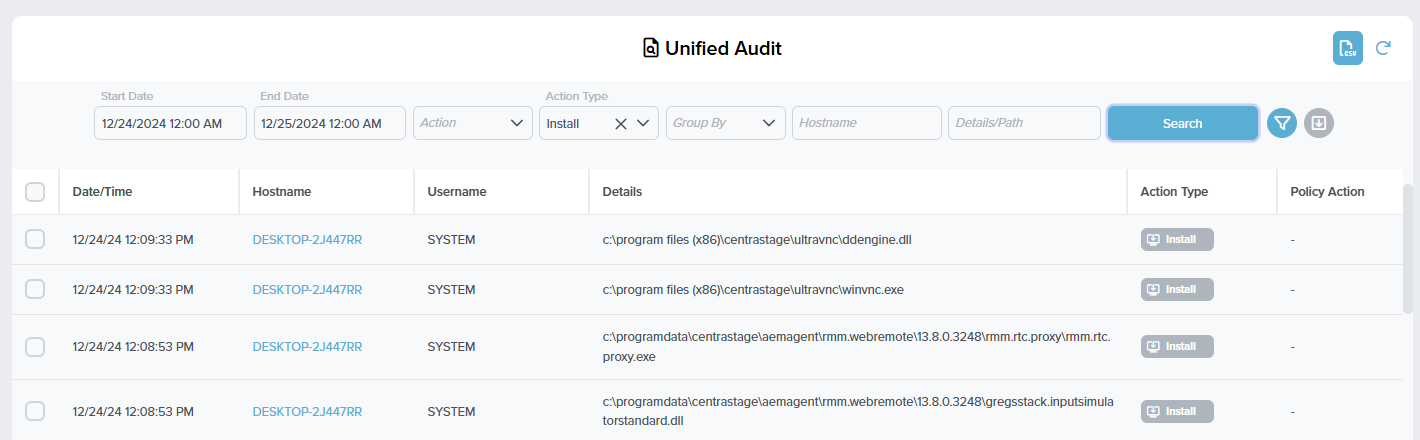
Default opens last 24 hours. Tighten to the window the user reported, plus a few minutes either side. Wider windows return more rows; more rows mean more chance you misread one.
Set to Any Deny when triaging “what got blocked.” Equivalent to the portal’s deny-only filter; the API uses action ID 99 for Any Deny.
The thirteen-item enum: execute, install, network, registry, read, write, move, delete, baseline, powershell, elevate, configuration, dns. The same binary can be permitted to execute and have a denied network call from a ringfence; the right Action Type narrows the read.
Filtering before Search is faster than scrolling. Get the hostname from the ticket, paste it here.
*dropbox* matches anywhere the file path, process path, or created-by-process path contains “dropbox”. Useful when you don’t know the exact path the user attempted.
Each row is one policy decision: timestamp, hostname, username, the file’s full path in Details, the Action Type chip, and the Policy Action column. Click a row to see the matching application, hash, signature, and originating process.
A separate Remove White Noise toggle (off-screen on smaller portals; sits inside the page filter panel) hides the well-known white-noise denies that the OS generates constantly (system DLLs the kernel pokes at). It’s on by default; turn it off when chasing a never-seen-before binary that the noise filter might be hiding.
”True” denies versus “simulated” denies
The Unified Audit distinguishes:
- True denies (red): the policy denied and the action did not happen.
- Simulated denies (green): the action was effectively permitted on the endpoint, but it would have been denied if the computer had been in Secured Mode.
Simulated denies are the gold of a Learning Mode rollout. They show you what your future policies would have blocked, without anyone yet noticing. Used right, they let you tune ringfences and computer-group policies before you ever flip a customer to Secured.
A request log without a True deny is the smell test for “the user said they got blocked but nothing actually blocked.” If you find a Simulated row instead, the customer’s machine may still be in a Maintenance / Monitor-only mode and the ringfence isn’t enforcing yet.
A worked ticket: Able Moose Accounting
Sarah at Able Moose Accounting calls: she opened a CSV from her email and got “Excel can’t open the file.” There’s no request in the Response Center.
Filter
Time window = the last 30 minutes. Hostname = ABLE-LT-SARAH. Action type =
read. Filter: Remove White Noise = on.Read the rows
Two rows match. One Permit for
c:\users\sarah\downloads\quote.csv. One Ringfenced row showing Excel attempting to read from\\\\external-fileshare\\partners\\and being denied by File Ringfencing on the Office (Built-In) policy.Diagnose
Sarah’s email had a CSV that linked to a network path she’d never accessed before. The file itself read fine; it was the external network share in the linked formula that the Office ringfence blocked. Excel showed a generic error rather than naming the actual block.
Right action
Document the finding in the ticket. The ringfence is doing its job; this isn’t a misconfiguration. Loop in the customer about whether
\\\\external-fileshareis a sanctioned partner location. If it is, the fix is in policy design (covered in the Intermediate course), not at the helpdesk.
What this is NOT
- Not a SIEM. Policy-decision history, not full system event history. Login events, process-creation events, network connections that no policy matched, none of them land here.
- Not where approval-request comments live. Comments stay with the request in the Response Center and on the resulting policy. The Audit shows what happened, not the conversation about it; if you’re looking for “why was this approved?” you’re on the wrong page.