The Roaming Client, install, verify, and the three failure modes
Install and verify the DNSFilter Windows Roaming Client, then troubleshoot the three real-world failures frontline techs see most often.
The Roaming Client is the agent that keeps DNSFilter enforcing when a device leaves the office network, coffee shop, hotel, home Wi-Fi, mobile hotspot. Without it, a laptop on the wrong network is filtered by whatever resolver the network hands out, which is usually nothing at all.
What you need before installing
| Requirement | Notes |
|---|---|
| Windows 10 or higher, x64 or ARM64 | Windows 11 fully supported. Windows Server, shared desktop environments, and Windows 365 Cloud PC are explicitly not supported. |
| .NET runtimes | .NET Framework 4.8.1 or higher for all supported agent versions. .NET Desktop Runtime 8.0 also for agent v2.1.0+. .NET 8 Runtime for agent v3.0+ (unless NativeAoT is available). |
| The customer’s site or agent key | Provisioned in the DNSFilter dashboard; ties the agent to the right Organization and applies the right policy. |
For a single device, the installer GUI walks the tech through it. For a fleet, DNSFilter supports silent install (suitable for repeated deployments), Active Directory / Entra ID, and any RMM or MDM tool that can push an MSI. Install by hand once, then copy the working command into your RMM script.
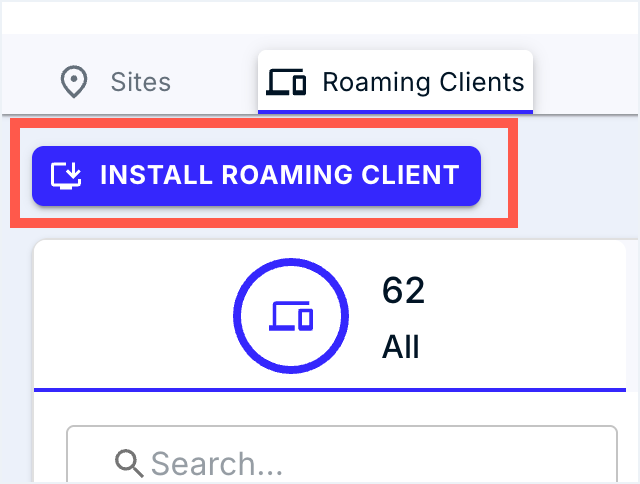
The Roaming Clients tab in the dashboard is where the per-device installer comes from. The INSTALL button generates the customer-scoped installer, that’s the artefact you copy into your RMM script.
Verifying the install
flowchart LR
    I[Installer<br/>finishes]
    I --> S[DNSFilter Agent service running]
    S --> Q[Test query]
    Q --> D[Dashboard shows<br/>device + recent queries]
    D --> P[Block-page test domain<br/>returns block page]
After the installer finishes:
- Confirm the DNSFilter Agent service is running (Services or
Get-Service). - Make any web request, then check the DNS Query Log filtered by the new device. You should see queries appearing within seconds.
- Browse to
debug.dnsfilter.com. The hosted block page should appear with a confirmation that the agent reached DNSFilter; that proves enforcement is wired up end-to-end. For category-by-category checks, DNSFilter publishes a*.filterdns.netfamily (e.g.phishing.filterdns.net) on its example test domains page.
The three failure modes
1. The agent service is stopped
Symptoms: device works fine on Wi-Fi, no DNSFilter block page on the test domain, no recent queries from the device in the Query Log.
Fix: start the DNSFilter Agent service. If it won’t stay running, check Event Viewer for the agent’s error and confirm .NET prerequisites are present.
2. Captive portal won’t load
Symptoms: airport / hotel / hotspot Wi-Fi shows “connected, no internet”, the captive portal login page never appears.
Why: the Roaming Client’s filtering can interfere with the network’s captive-portal detection, especially on macOS prior to v2.3.8 (which introduced Travel Wi-Fi Mode for this case). Windows generally handles this by failing the network’s connectivity probe first, but it can still happen.
Fix: usually restart the network connection while the agent re-detects the captive portal. If a customer reports this often, an upgrade to a more recent Roaming Client version is the longer-term fix.
3. Full-tunnel VPN bypassing the agent
Symptoms: device has the agent running but the Query Log shows no queries while VPN is connected; user reports websites that should be blocked are loading.
Why: a full-tunnel VPN routes all traffic, including DNS, through the VPN’s network resolvers, so the Roaming Client never sees the queries.
Fix: change the VPN to split-tunnel where possible (this is DNSFilter’s recommended setup). If full-tunnel is a hard requirement, and the agent is running in Classic DNS Filtering mode, point the VPN client’s DNS at the loopback address 127.0.0.2 as the primary server, with the VPN’s original tunnel DNS as secondary (failover only). For OpenVPN Connect specifically, you may also need to enable “Allow DNS resolution over loopback”. DNSFilter’s docs cover the per-client steps. The result: queries route through the Roaming Client first, with a clean fallback if the agent is somehow unavailable.
A worked ticket: Able Moose Accounting
Mark from Able Moose works from home on Tuesdays. He reports the test block page works at the office but not at home, risky sites just load.
Confirm the agent is alive at home
Walk Mark through
services.msc, find DNSFilter Agent, status = Running. Yes? OK.Check the Query Log for Mark's device while he's at home
Filter by his Roaming Client. No queries showing while connected to the corporate VPN. Plenty showing when he disconnects.
Quick checkThat symptom pattern — zero queries from the device while VPN is connected, plenty as soon as he disconnects — most likely points to which cause?
Pick one.Diagnose, full-tunnel VPN
The VPN policy is full-tunnel; DNS goes through the VPN’s resolver, not through the Roaming Client.
Apply fix and verify
Coordinate with the VPN administrator. Either move Mark’s user to a split-tunnel profile, or set the VPN config’s primary DNS to
127.0.0.2(with the original tunnel DNS as secondary failover) so queries route through the agent. Re-test the block page from home.Quick checkIf split-tunnel isn't an option, which loopback IP do you set as the VPN client's PRIMARY DNS so queries flow through the Roaming Client first?
Pick one.