Tour of the Printix Administrator
Where printers, computers, users, and history live in the Printix Administrator console, and the seven menu items a frontline technician should recognise on sight.
The customer’s Printix Home is at customer-name.printix.net. Sign in with your Microsoft, Google, Okta, OneLogin, or OIDC account, and you land on the Administrator. Knowing where things live is the cheapest possible triage skill.
The seven menu items
flowchart TB
    M[Menu]
    M --> D[Dashboard<br/>print activity, secure print %,<br/>system status, suggestions]
    M --> S[Sites<br/>folders + sites + networks,<br/>site manager groups]
    M --> N[Networks<br/>gateways, BYOD, zero trust]
    M --> P[Printers<br/>printers, print queues,<br/>Printix Go, drivers]
    M --> C[Computers<br/>per-user-machine state,<br/>diagnostics, history]
    M --> U[Users + Groups<br/>roles, group sync,<br/>site managers]
    M --> A[Authentication +<br/>Settings + Subscription]
The five rows you’ll touch on the helpdesk:
- Dashboard. Period-windowed counters: print activity, Printed in black, Printed 2-sided, Save-O-Meter (uncollected pages), Secure print percentage. The window options are Last 7 days, Last 14 days, or Last 4 weeks. First place to look when a customer asks “is Printix even being used?”
- Printers. Every registered printer with its three-letter ID (the ASD, BNM, CVB identifiers Printix auto-assigns), its queues, Printix Go status, and the network it lives on. Printer properties is where you replace, rename, or retire a device.
The Printers page is the single most-used surface during triage:
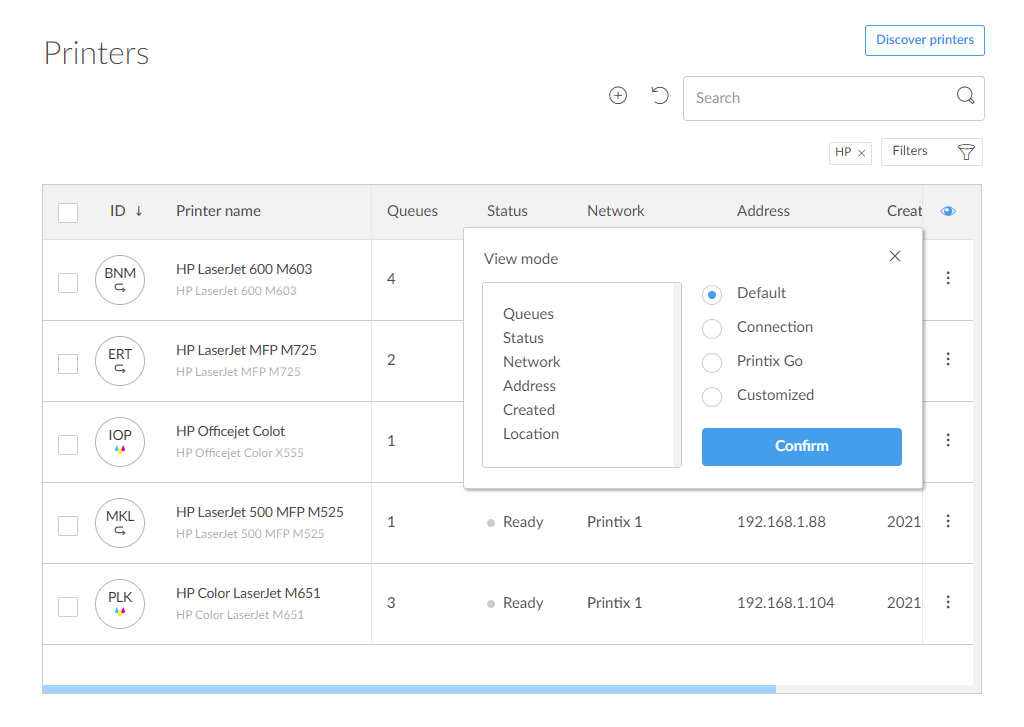
Auto-assigned at registration. Printed on the printer’s QR / NFC sign so users can scan to find the right queue. Survives renames.
The customer’s chosen name. Convention: combine the location with the role, for example “Reception”.
Tells you which Site / Network owns the device. A user on a different Network won’t see it unless their queues are configured to.
First place to look when a ticket says “the printer’s broken.” If it’s offline here, the issue is on the LAN before it’s in Printix.
- Computers. Each user’s workstation with the Printix Client on it. Per-machine Diagnostics tab shows queue counts, printer errors, and proxy status. Per-machine History tab shows recent jobs and tasks. This is where you confirm the agent is actually online before chasing user error.
- Users. Every signed-in user with their role (System manager, Site manager, User, Guest, Kiosk user) and sign-in method. User properties is where roles get changed.
- Authentication. Which sign-in methods are enabled (Microsoft Entra ID, Google, Okta, OneLogin, OIDC, Active Directory, Sign in with email). Touch only with explicit change-control authority; flipping these affects everyone in the tenant.
The two you’ll mostly read but rarely change:
- Sites and Networks. How the customer’s offices and IP ranges map to print routing. Beginner-course scope: just know how to find the right Site for a user’s ticket. Design lives in the Intermediate course’s first lesson.
- Settings. Tenant-wide knobs: secure print defaults, print rules, Printix Go configurations, capture workflows, mobile print, home office, SNMP, webhooks. Beginner-course scope: don’t change without authorisation.
A worked ticket: Able Moose Accounting
Sarah at Able Moose Accounting opens a ticket: “My laptop says it’s printing to Reception ASD but nothing comes out. Did the printer break?”
(Reception ASD is the canonical Printix order: name then three-letter ID. The Printix App’s history view sometimes lists the ID first; both refer to the same printer.)
Confirm tenant in the header
Sign in to
ablemoose.printix.net. Confirm the header reads “Able Moose Accounting” before doing anything.Check the printer
Menu, then Printers. Find Reception ASD in the list. Status column tells you Online or has an error. If it’s offline, the issue is on the LAN, not in Printix.
Check Sarah's computer
Menu, then Computers. Search for Sarah’s hostname. Status, the Printix Client version, and the Type (Laptop / Desktop) tell you whether the agent is alive. Open the Diagnostics tab to see if jobs are flowing.
Check the printer's recent History
Back on the printer’s page, the History tab is the audit trail of who printed what and whether it succeeded. If Sarah’s job appears there with a successful state, the print server (well, Printix) did its part. The job is at the printer.
The point of this ticket isn’t the answer (it usually turns out to be a paper jam or an out-of-toner state nobody told the user about). It’s the muscle memory: header first, then Printers, then Computers, then History.
What this is NOT
- The Administrator is not the user-facing app. End users do not sign in here. Their app is the Printix App at
customer-name.printix.net(web) or the mobile apps for Android and iOS. Treat the Administrator as MSP-only. - Printix Home and Printix Partner Portal are different consoles. Partner Portal lives at
partner.printix.netand lists tenants. Don’t confuse “I can see the customer” in Partner Portal with “I’m administering the customer” in their Printix Home.