Brand Kits and Campaigns, controlling the brand layer
Brand Kits as the asset library that signatures inherit from, Campaigns as time-boxed promotional banners, and the design discipline that keeps logo refreshes from cascading into 30 ticket changes.
A signature is a layout. A Brand Kit is the bag of assets the layout inherits from. Campaigns are short-lived banners that ride the same mail path. The Intermediate-level skill is keeping these three layers separate so brand changes don’t ripple into design churn.
Three layers, three jobs
| Layer | What lives there | When it changes |
|---|---|---|
| Brand Kit | Fonts, colours, logo, icon, banner, meeting background, disclaimer text | When the brand changes (annual or rare) |
| Signature template | Layout, which fields go where, which Brand Kit assets are referenced | When the layout changes (per-customer-redesign) |
| Campaign | Banner image, hyperlink, start and end dates | Per marketing window (weekly to quarterly) |
Plan note: Starter plans get one Brand Kit, Standard gets three, Pro gets unlimited. Campaigns are Standard and Pro only.
Brand Kits as the inheritance layer
A Brand Kit holds optional assets:
- Fonts. Two font choices plus fallbacks, picked from Exclaimer’s curated font list. The Brand Kit screen does not accept custom font uploads. Custom-font upload only works at the per-element level: open a Text or Disclaimer element on the canvas, click the Manage button on the Properties pane, and upload the font there. That custom font then applies to the one element, not to the Kit.
- Colours. Two brand colour choices that signature elements pull from for text, border, background, foreground.
- Logo, Icon, Banner. Image assets, embedded (uploaded), not linked from the web.
- Meeting Background. Used by the Meeting Branding feature, not by signatures.
- Disclaimer text. Plain text used by the Disclaimer signature element inside templates (separate from the standalone Disclaimers feature).
When a Brand Kit asset changes, every signature that references it updates automatically. That’s the whole point: a logo refresh is a single edit, not 30.
The Signature Designer has a Brand Kit drop-down at the top. The active Kit is what the signature inherits from. To use Brand assets explicitly, drop in an Image/Logo element and pick Brand Image rather than uploading a one-off image; that’s what makes it inherit.
A worked design: Able Moose Group rebrand
Able Moose Group, the canonical mid-market customer, refreshes its brand. New logo, new corporate colours, slightly different font.
The wrong way: open every active signature and replace the logo, colour, and font directly.
The right way:
Update the Brand Kit
Settings, Brand Kits, Edit the existing ‘AMG-Brand-2026’ Kit. Replace the logo image, swap Brand Color 1 and Color 2, change Brand Font 1.
Save and inspect
Save the Brand Kit. Open one signature in the Designer; the preview reflects the change without you touching the template.
Audit signatures using brand-explicit assets
Walk the signature list. For each, confirm the Image/Logo element is set to Brand Image (not an uploaded one-off) and that Text properties reference Brand Fonts and Brand Colors. Anywhere a tech historically uploaded a one-off image or hardcoded a hex value, that’s the migration debt; fix as you find it.
Run the Signatures Tester
Pick a representative user from each signature audience. Run the Tester. Confirm the rendered preview reflects the new brand.
The whole sequence is twenty minutes for thirty signatures, instead of three hours of one-by-one edits.
Campaigns: a banner that isn’t a signature
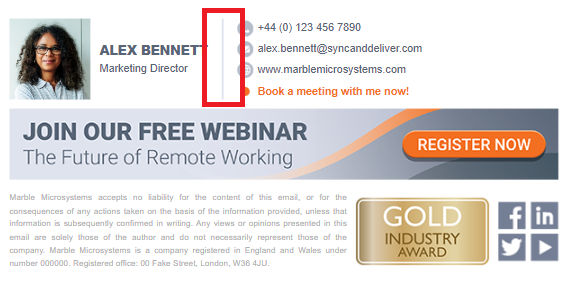
A Campaign is a banner image with a hyperlink, optional alt text, and a start and end date and time. It’s appended after the active signature on every email matched by the Campaign’s own rules. Campaigns don’t take up a signature slot, and the signature processing-order rules don’t apply to them.
Constraints worth knowing:
- Image format JPG, JPEG, PNG, or GIF; under 150KB; up to 600x600 pixels.
- Only one Campaign applies at a time. If two enabled Campaigns overlap in date and time, Exclaimer applies the first Campaign with matching criteria; the second is silently skipped.
- Campaigns deploy server-side on Microsoft 365 and Google. Client-side Campaigns work for Microsoft 365 but not for Gmail (Gmail HTML limitations).
Use Campaigns when, and don’t use them when
| Situation | Tool |
|---|---|
| Two-week event registration banner (ends and is removed) | Campaign |
| New product launch banner running for one quarter | Campaign |
| Permanent banner under every signature | Add to the signature template, not Campaigns |
| Different banner per role | Multiple signatures with their own banner images, not one Campaign |
| A regulatory legal disclaimer that must run constantly | Disclaimer object (Standard and Pro), not a Campaign |
Campaigns are time-boxed by design. Using them as permanent furniture defeats the purpose and risks the one-Campaign-at-a-time constraint biting later.